OCPP Integration Alpitronic Chargers
Hypercharger
This guide applies to models HYC 50, 150, 200, 300 & 400. Full product documentation can be found here (opens in a new tab).
Connect your computer to the charger using a network cable. The corresponding Ethernet port is labeled XF1 and is located at the bottom of the station, on the side with the display door.
Open a web browser and enter the default IP address 192.168.1.100 in the address bar to access the web interface.
Log in using the default credentials:
Username: admin
Password: admin123
Apply the following settings under OCPP.
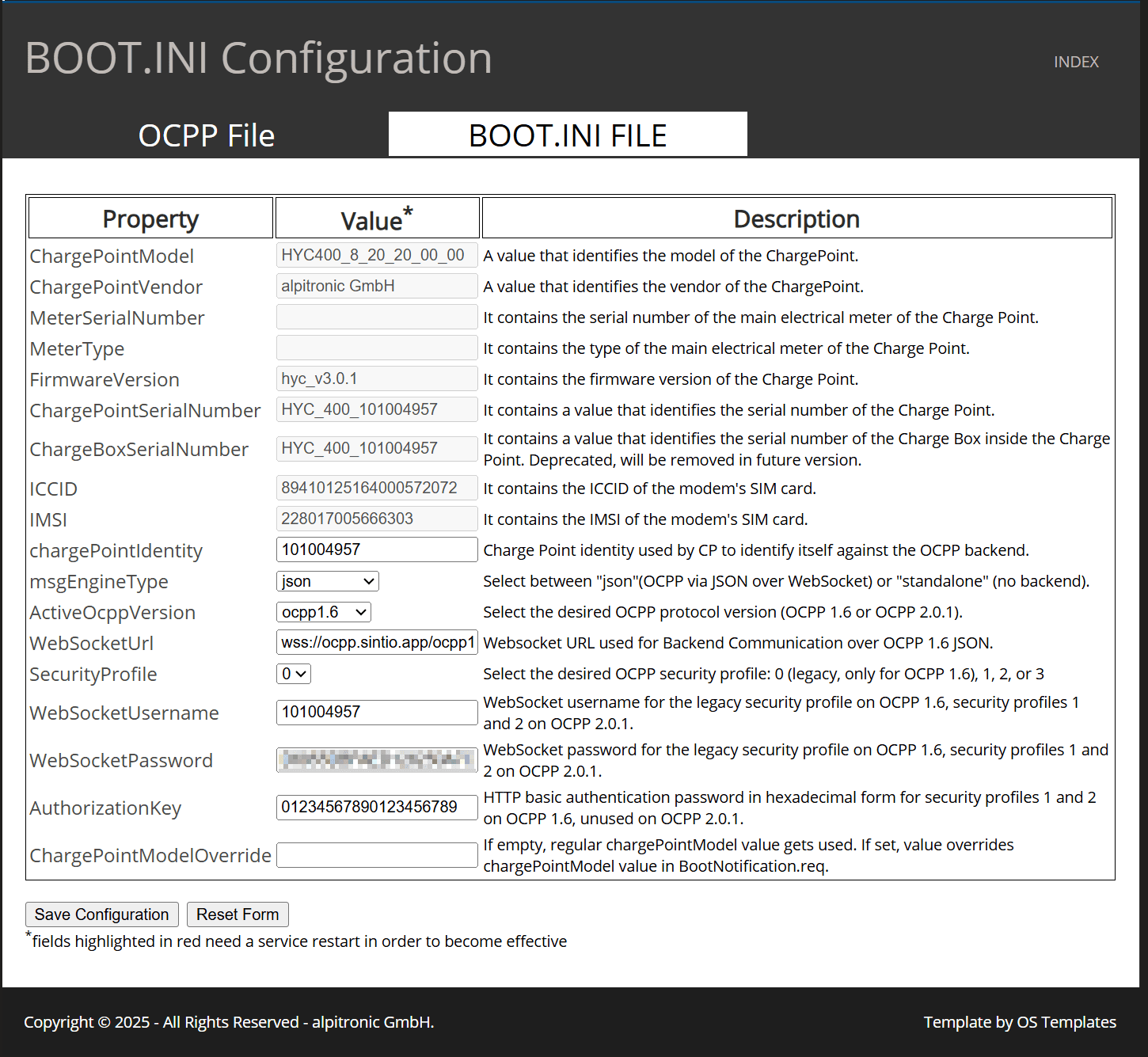
| Description | Input |
|---|---|
| chargePointIdentity | Leave the default value unchanged, for example 101004957 |
| msgEngineType | Select json from the dropdown |
| ActiveOcppVersion | ocpp1.6 |
| WebSocketUrl | wss://ocpp.sintio.app/ocpp16/YourOrganizationName |
| WebSocketUsername | Must be identical to chargePointIdentity |
| WebSocketPassword | OCPP password from the Sintio Portal |
| AuthorizationKey | 01234567890123456789 |
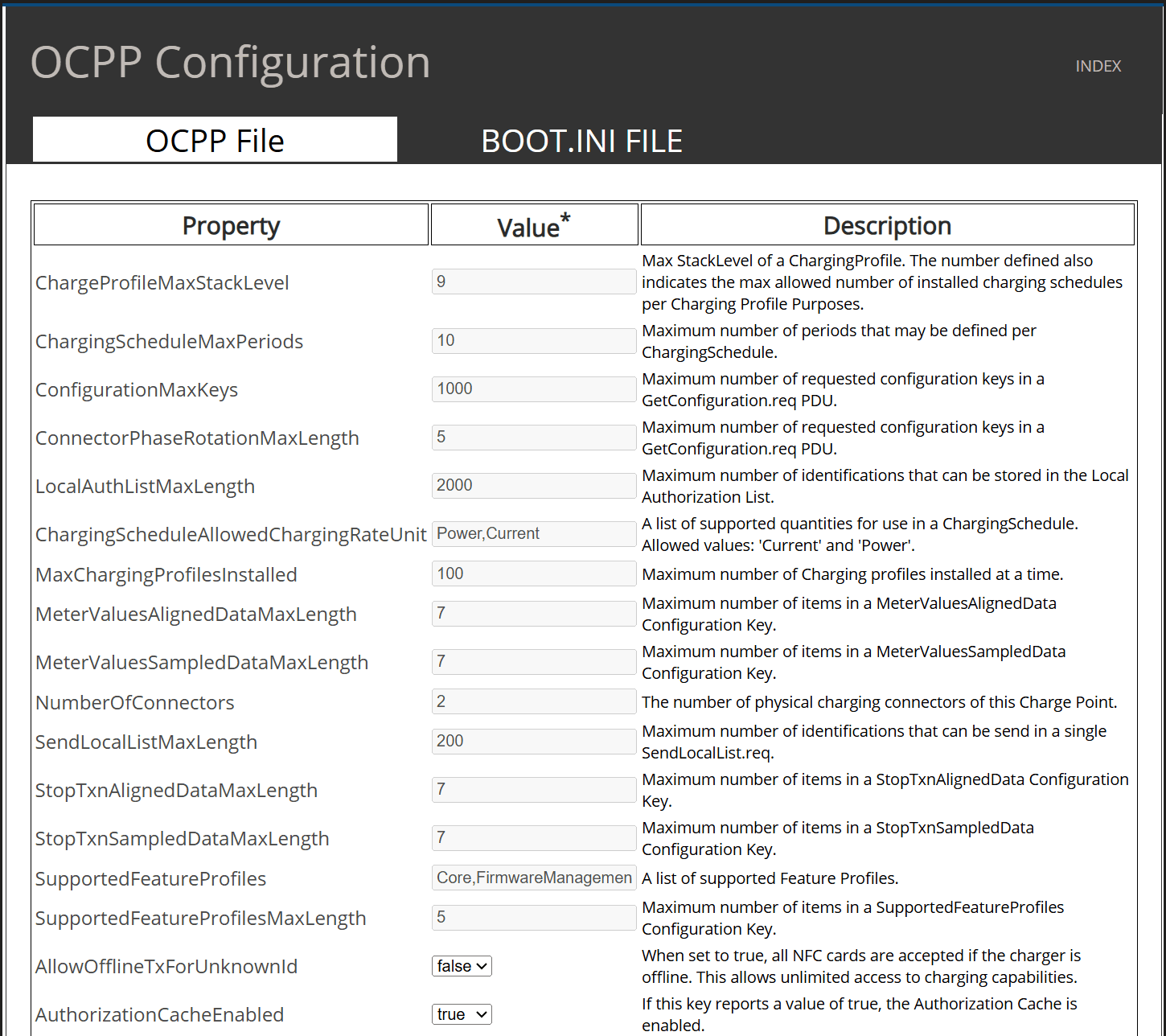
| Description | Input |
|---|---|
| ChageProfileMaxStackLevel | 9 |
| ChargingScheduleMaxPeriods | 10 |
| ConfigurationMaxKeys | 1000 |
| ConnectorPhaseRotationMaxLength | 5 |
| LocalAuthListMaxLength | 2000 |
| ChargingScheduledAllowedChargingRateUnit | Power, Current |
| MaxChargingProfileinstalled | 100 |
| MeterValuesAlignedDataMaxLength | 7 |
| MeterValuesSampledDataMaxLength | 7 |
| ChargingScheduleMaxPeriods | 10 |
| NumberOfConnectors | 2 |
| SendLocalListMaxLength | 200 |
| StopTxnAlignedDataMaxLength | 7 |
| StopTxnSampledDataMaxLength | 7 |
| SupportedFeatureProfiles | Core,FirmwareManagement... |
| SupportedFeatureProfilesMaxLength | 5 |
| AllowOfflineTxForUnknownId | Select false from the dropdown |
| AuthorizationCacheEnabled | Select true from the dropdown |
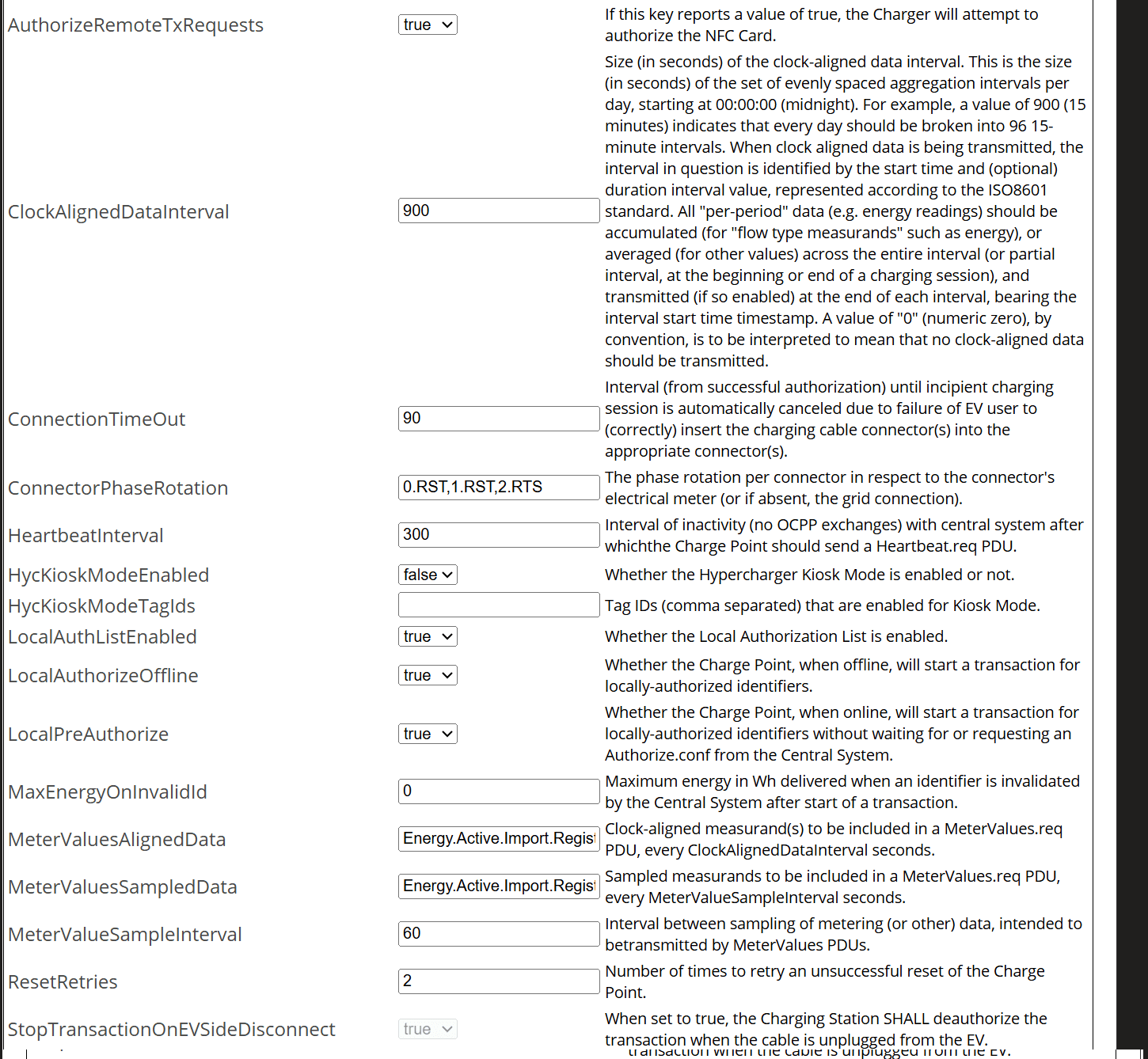
| Description | Input |
|---|---|
| AuthorizeRemoteTxRequests | Select true from the dropdown |
| ClockAlignedDataInterval | 900 |
| ConnectionTimeOut | 90 |
| ConnectorPhaseRotation | Enter according to the technical conditions |
| HeartbeatInterval | 300 |
| HycKioskModeEnabled | Select false from the dropdown |
| LocalAuthListEnabled | Select true from the dropdown |
| LocalAuthorizeOffline | Select true from the dropdown |
| LocalPreAuthorize | Select true from the dropdown |
| MaxEnergyOnInvalidId | 0 |
| MeterValuesAlignedData | Energy.Active.Import.Register |
| LocalAuthorizeOffline | Energy.Active.Import.Register |
| MeterValueSampleInterval | 60 |
| ResetRetries | 2 |
HycKioskModeEnabled must be set to false. Otherwise, a charging session will automatically start once the cable is plugged in.
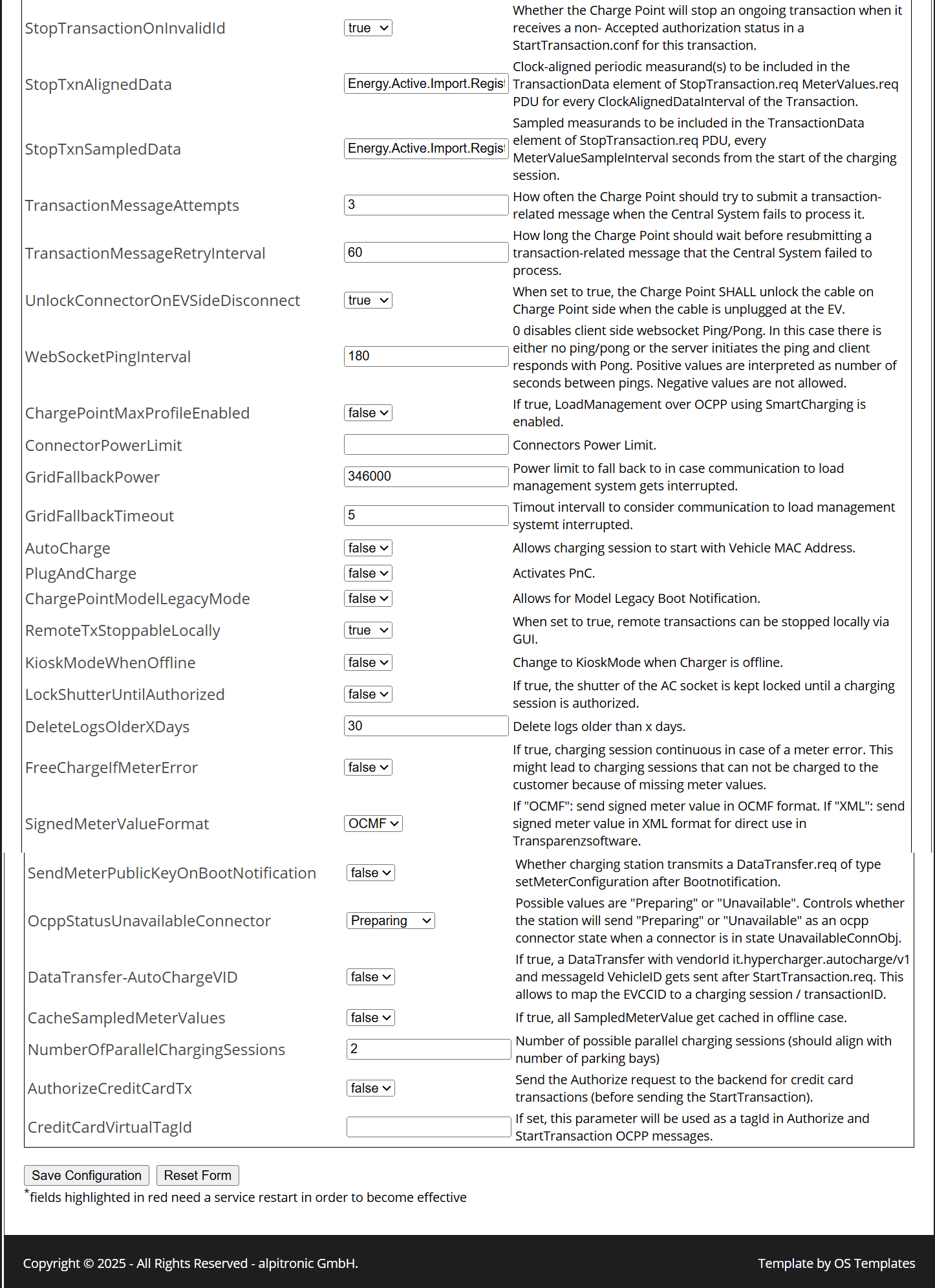
| Description | Input |
|---|---|
| StopTransactionOnInvalidId | Select true from the dropdown |
| StopTxnAlignedData | Energy.Active.Import.Register |
| StopTxnSampledData | Energy.Active.Import.Register |
| TransactionMessageAttempts | 3 |
| TransactionMessageRetryInterval | 60 |
| UnlockConnectorOnEVSideDisconnect | Select true from the dropdown |
| WebSocketPingInterval | 180 |
| ChargePointMaxProfileEnabled | Select false from the dropdown |
| ConnectorPowerLimit | - |
| GridFallbackPower | 346000 |
| GridFallbackTimeout | 5 |
| AutoCharge | Select false from the dropdown |
| PlugAndCharge | Select false from the dropdown |
| ChargePointModelLegacyMode | Select false from the dropdown |
| RemoteTxStoppableLocally | Select true from the dropdown |
| KioskModeWhenOffline | Select false from the dropdown |
| LockShutterUntilAuthorized | Select false from the dropdown |
| DeleteLogsOlderXDays | 30 |
| FreeChargeIfMeterError | Select false from the dropdown |
| SignedMeterValueFormat | Select OCMF from the dropdown |
| SendMeterPublicKeyOnBootNotification | Select false from the dropdown |
| OcppStatusUnavailableConnector | Select Preparing from the dropdown |
| DataTransfer-AutoChargeVID | Select false from the dropdown |
| CacheSampledMeterValues | Select false from the dropdown |
| NumberOfParallelChargingSessions | 2 |
| AuthorizeCreditCardTx | Select false from the dropdown |
| CreditCardVirtualTagId | - |
The charger will register with the Sintio Portal, and you can complete the integration process. A guide on how to configure the charger in the Sintio Portal can be found here.