OCPP integration for EVTEC chargers
The EVTEC team is available to help integrate EVTEC chargers. You can find their contact details here (opens in a new tab).
Models tested so far:
OCPP Configuration
Configure the EVTEC charger through its web interface. The settings you will need are summarized below; the following sections show where to enter them.
| Charger setting | Value |
|---|---|
| OCPP Enable | True |
| OCPP Version | OCPP16J |
| CsAddress | Your organization's OCPP URL from the Sintio Portal |
| UseStrongTLS | True |
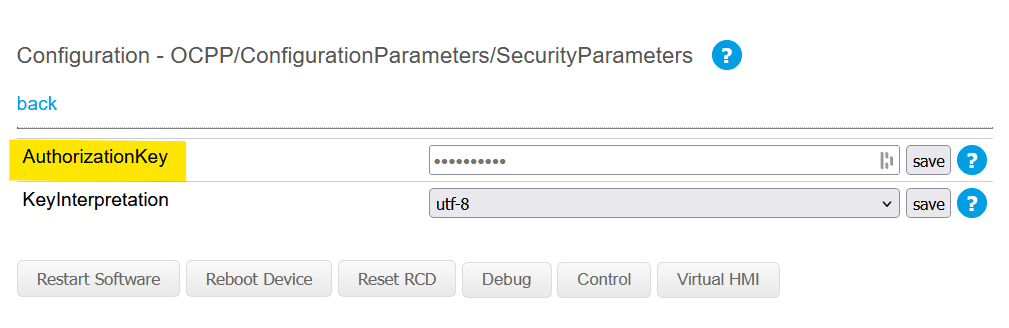
| AuthorizationKey | OCPP password from the Sintio Portal |
| KeyInterpretation | utf-8 |
Find the OCPP URL and password in the Sintio Portal under Org. Details. See Getting OCPP URL and password for instructions.
Open the Config page, select OCPP, then enable OCPP and choose version OCPP16J.
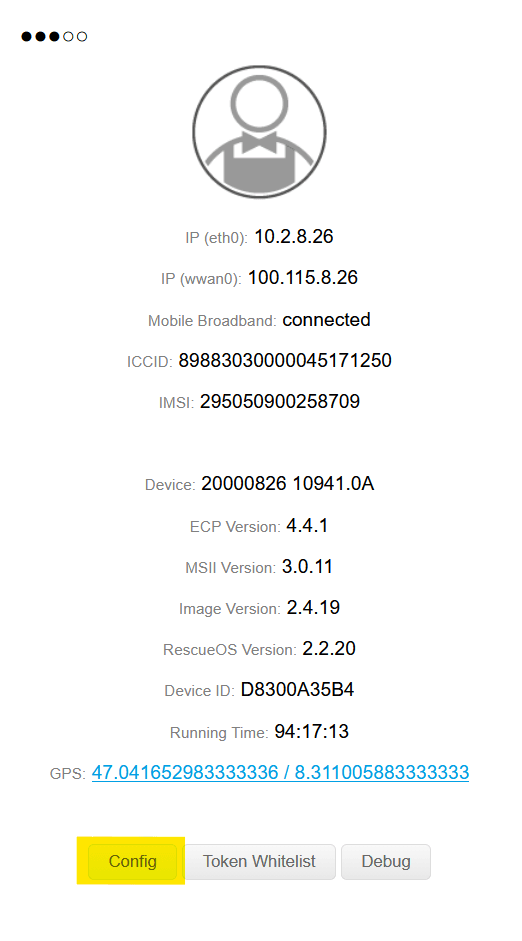
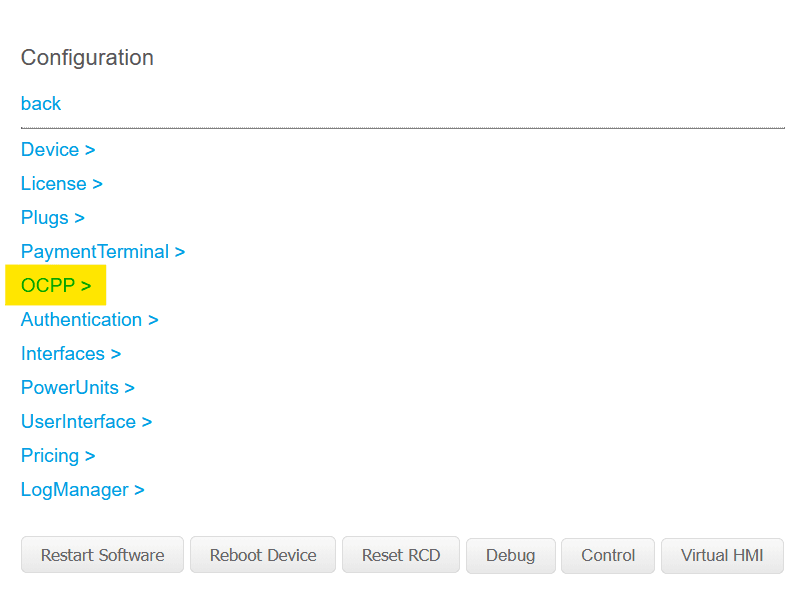
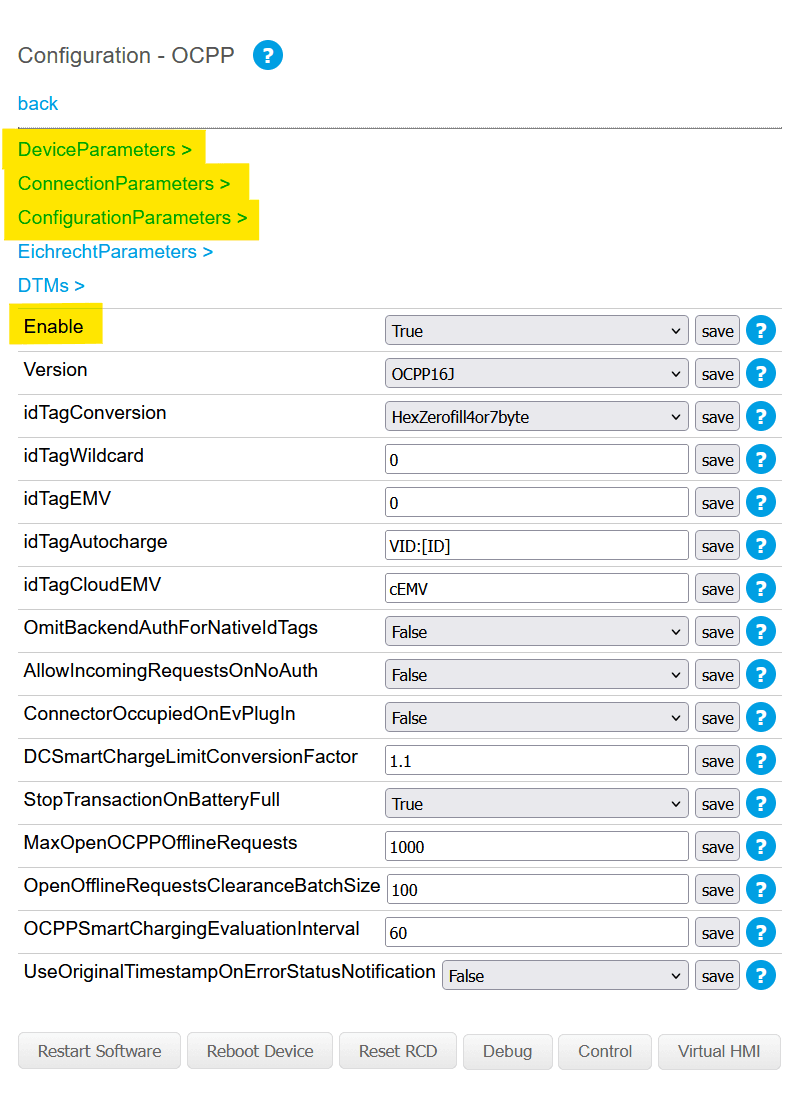
In ConnectionParameters, enter your organization's OCPP URL in CsAddress and keep UseStrongTLS enabled. Save each changed setting using the save button beside it.
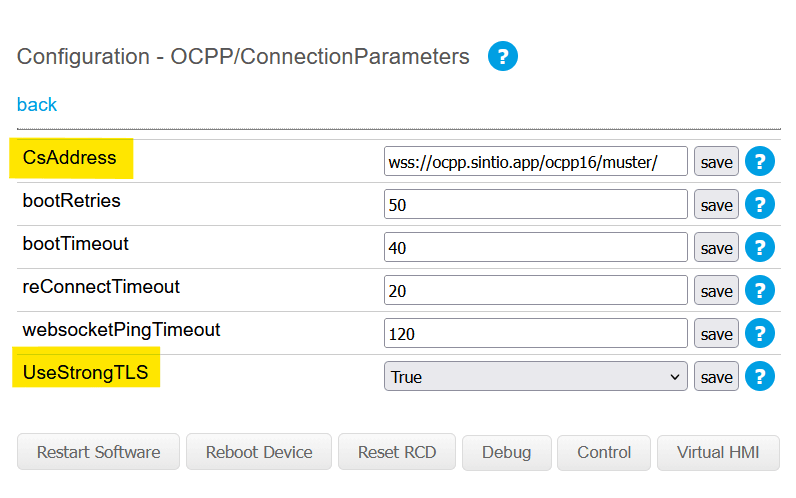
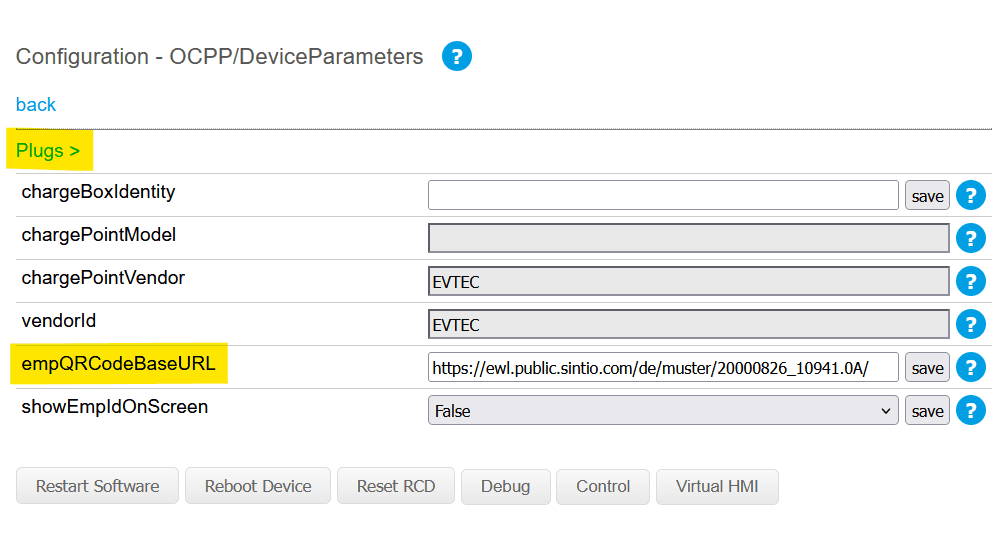
In DeviceParameters, use these values:
| Parameter | Value |
|---|---|
| chargePointVendor | EVTEC |
| vendorId | EVTEC |
| empQRCodeBaseURL | Copy the URL shown for this charger in the Sintio Portal |
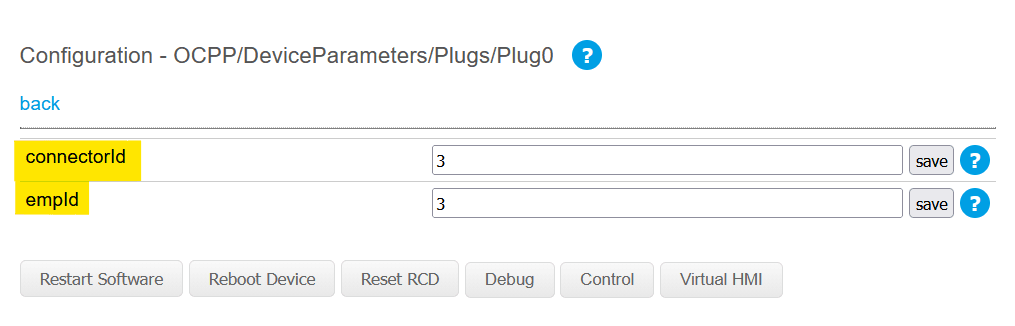
Open Plugs and set connectorId and empId to the values for the connector in the Sintio Portal.
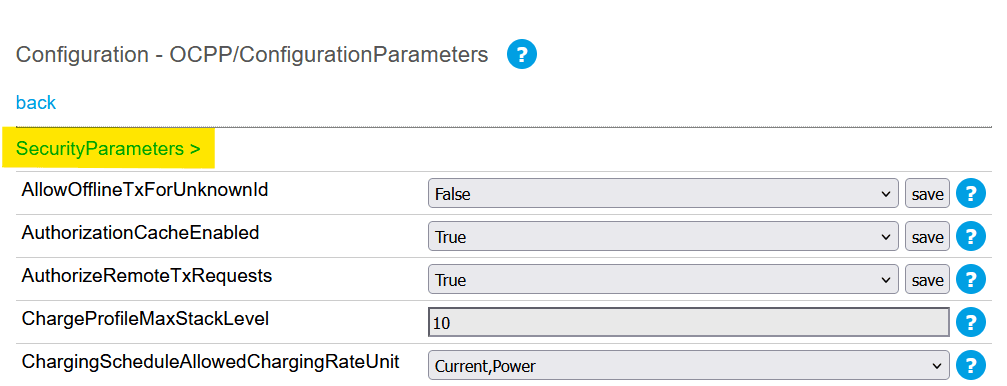
Under ConfigurationParameters > SecurityParameters, enter the OCPP password as the AuthorizationKey and set KeyInterpretation to utf-8. Save both settings.
After saving the settings, restart the charger so it can connect to the Sintio OCPP server.