OCPP Integration Gewiss Chargers
JoinOn
Open the web interface of your Gewiss JoinOn charger and navigate to Configurations.
The initial installation and network configuration of the charger are outside the scope of this guide. To access the On-board Portal, connect your computer either to the charger's Wi-Fi hotspot or to the same Wi-Fi/Ethernet network. Then open https://WIFI_HOTSPOT_SSID.local:8080 in a web browser, replacing WIFI_HOTSPOT_SSID with the SSID shown on the supplied label. Sign in with the username Installer and the WIFI_HOTSPOT_PSW shown on the label.
Common settings
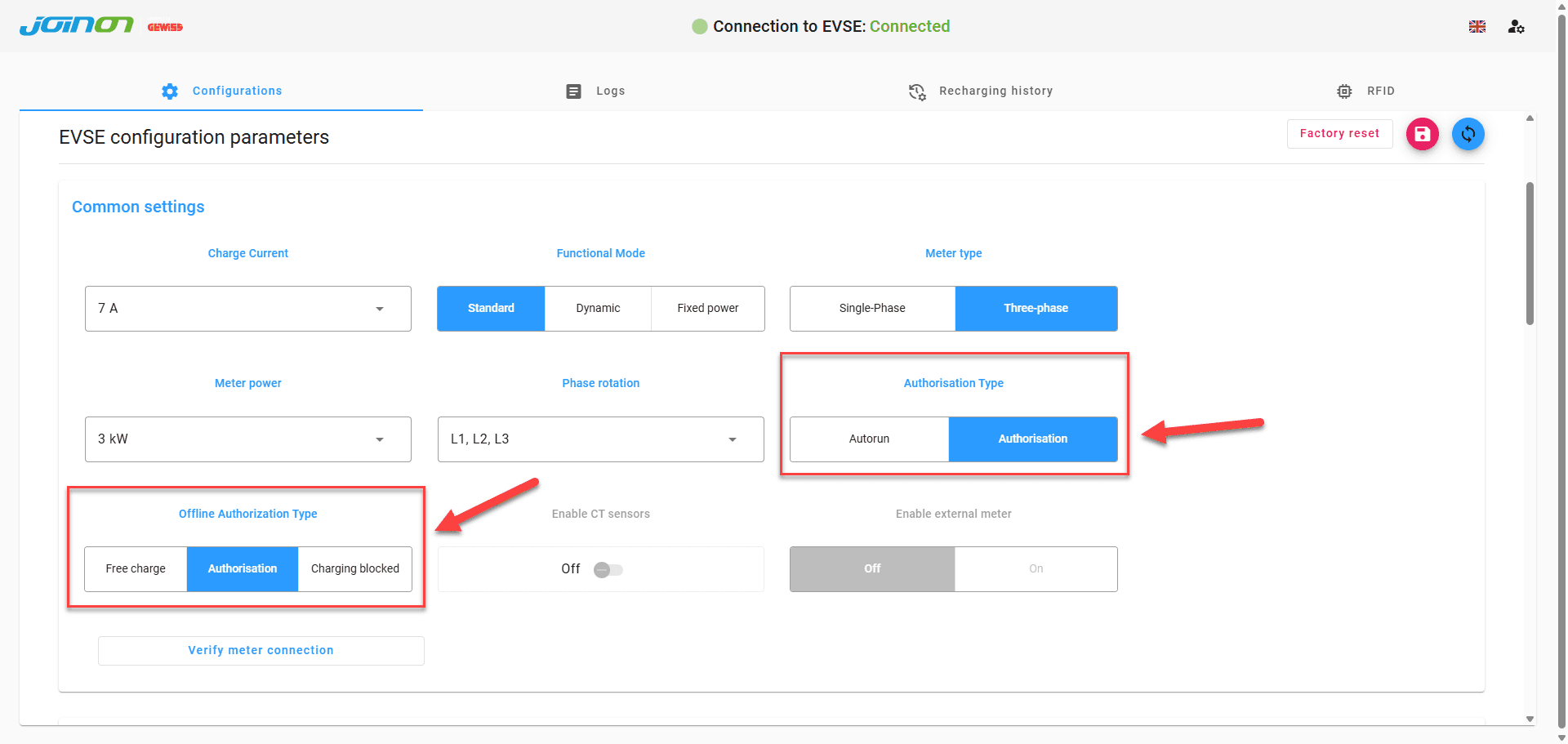
Under Common settings, set the following options to Authorisation:
| Setting | Value |
|---|---|
| Authorisation Type | Authorisation |
| Offline Authorisation Type | Authorisation |
OCPP configuration
Scroll to the OCPP section and enter the following values:
| Field | Value |
|---|---|
| OCPP protocol | ON |
| Central System Endpoint | wss://ocpp.sintio.app/ocpp16/YourOrganisation/ |
| Chargebox identity (CBID) | Keep the preconfigured value |
| Boot Notification Username | Identical to the Chargebox identity (CBID) |
| Boot Notification Password | OCPP password from the Sintio Portal |
| Heartbeat Interval | 300 |
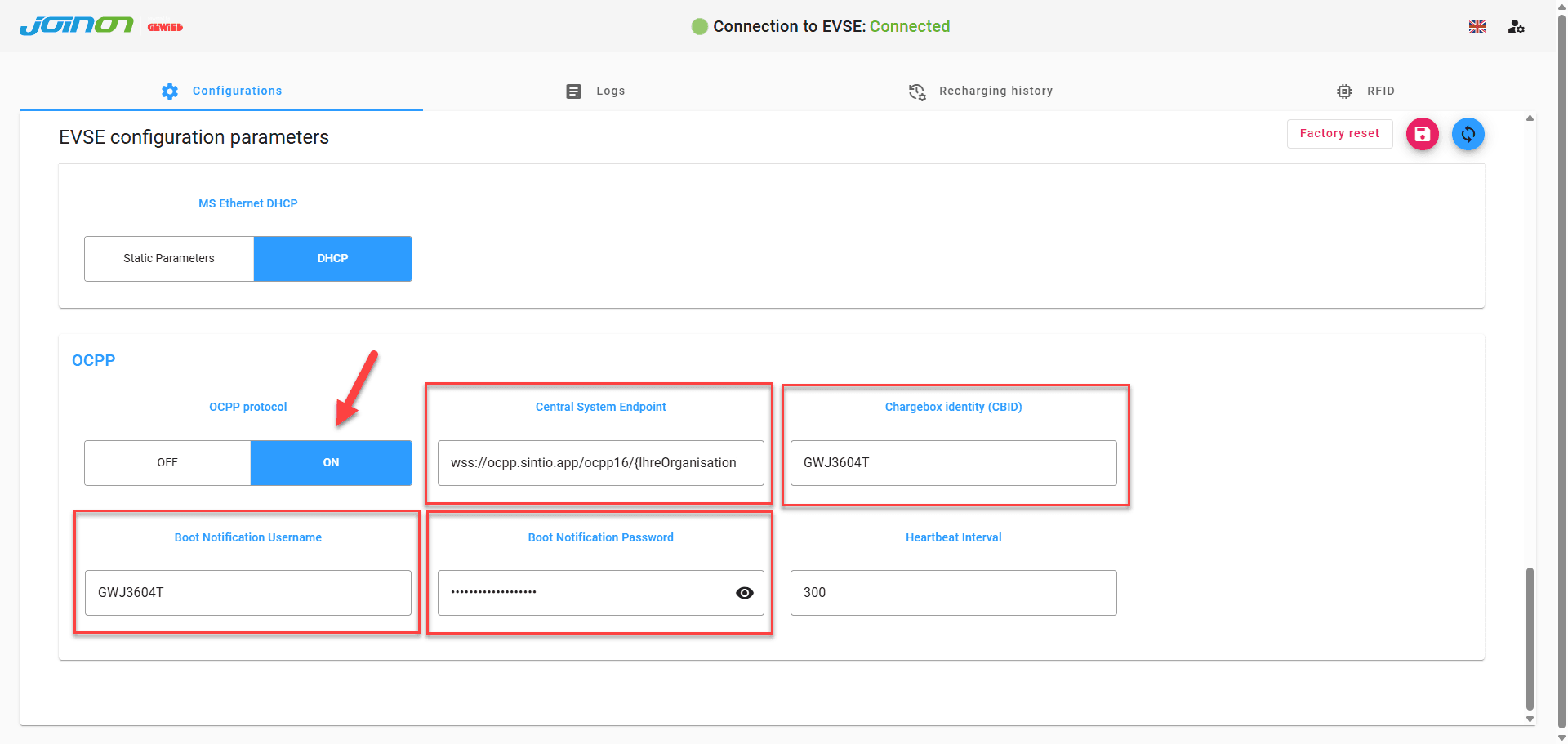
You can find your organisation's OCPP URL and password in the Sintio Portal under OCPP Details. Here you can find more information about your OCPP details.
Save the settings. The charger will appear in the Sintio Portal within a few minutes.
You can find instructions on how to configure the charger in the Sintio Portal here.