OCPP Integration Nexblue Chargers
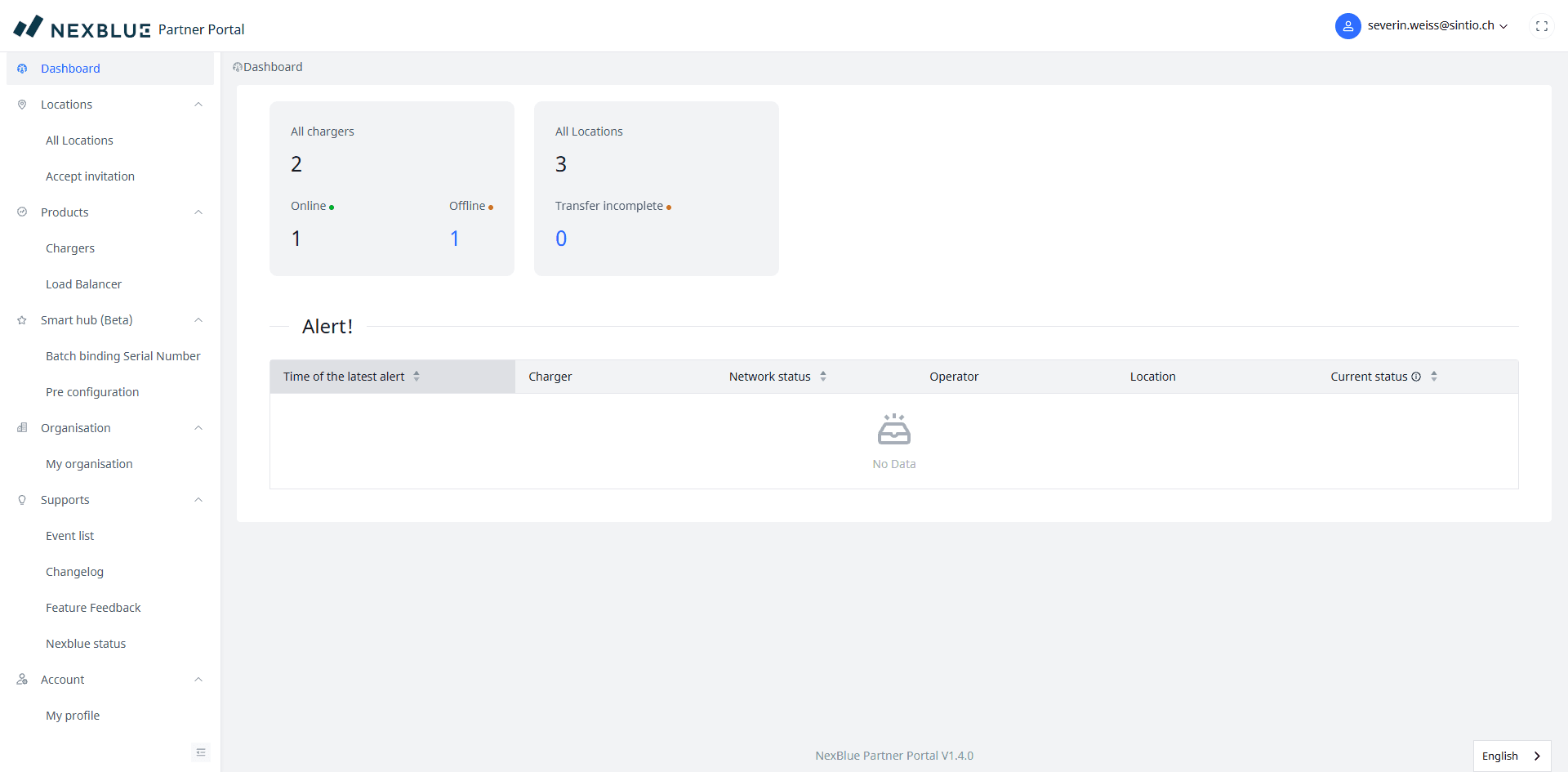
Open the Nexblue Partner Portal (opens in a new tab) and log in with your credentials. You will be taken to the dashboard, which gives an overview of all your chargers and locations.
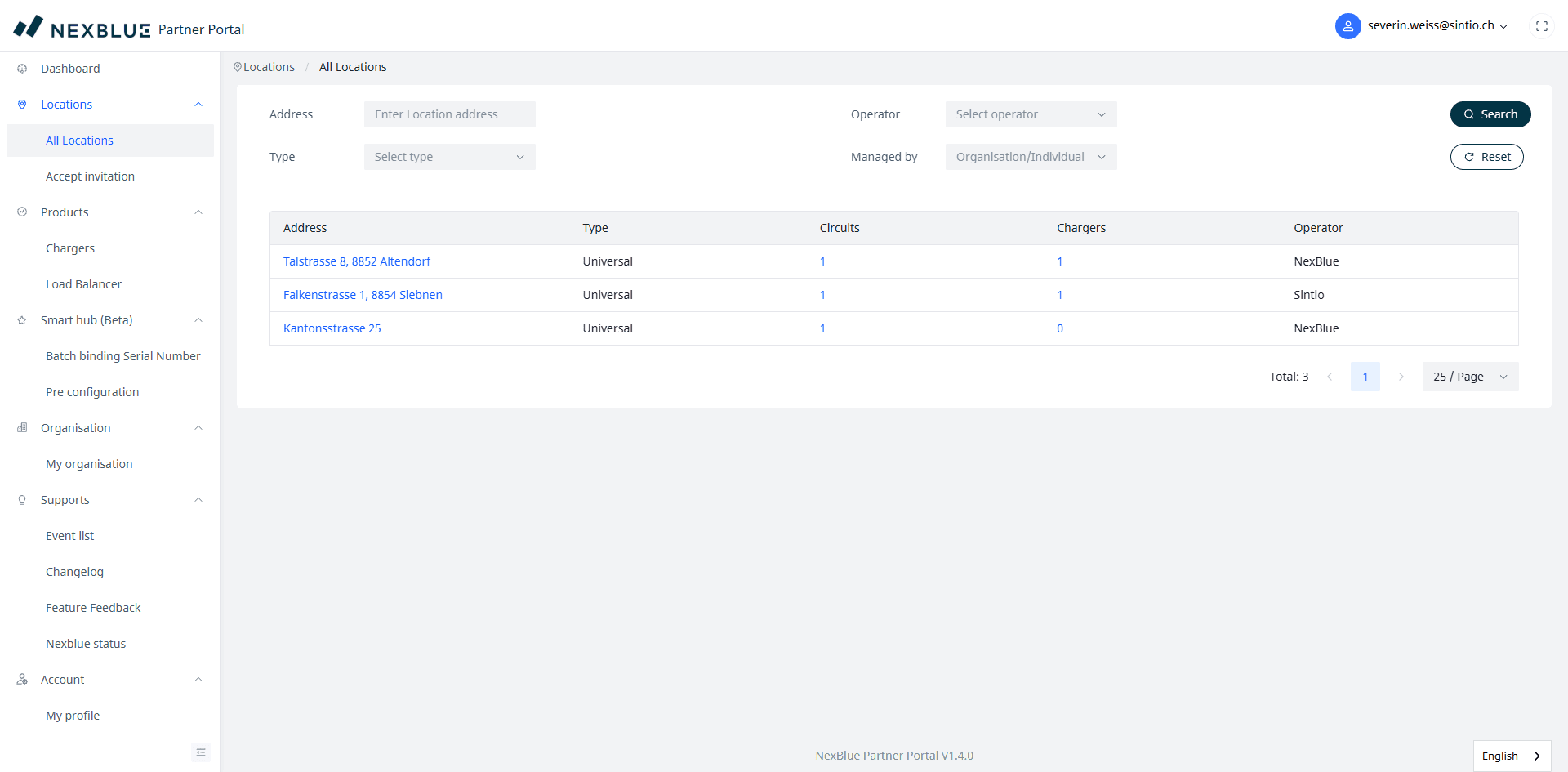
In the left-hand menu, navigate to Locations → All Locations and select the location where the charger to be configured is installed.
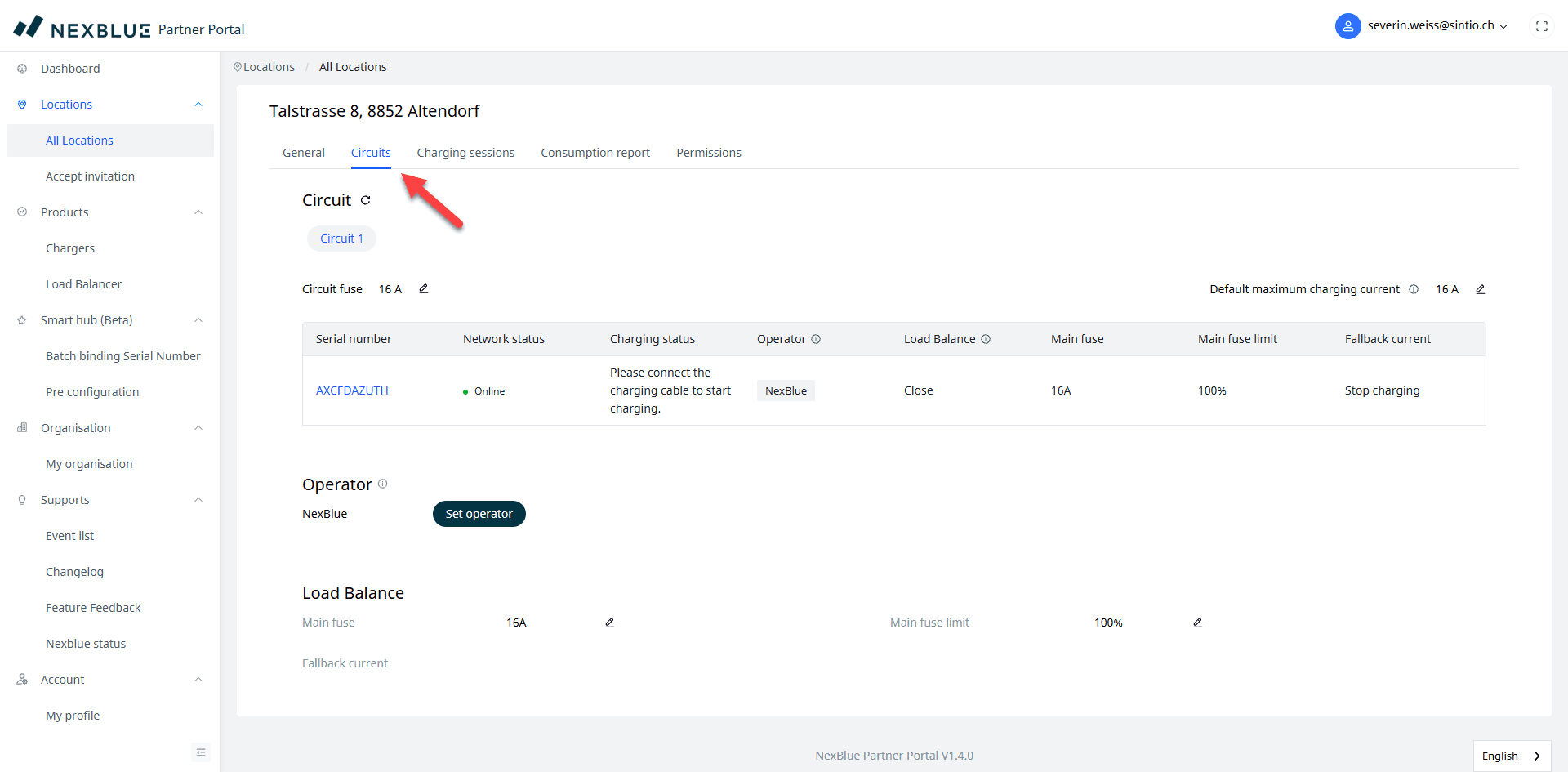
On the location detail page, switch to the Circuits tab. You will see the charger(s) in the circuit and the current Operator in the lower section. Click Set operator.
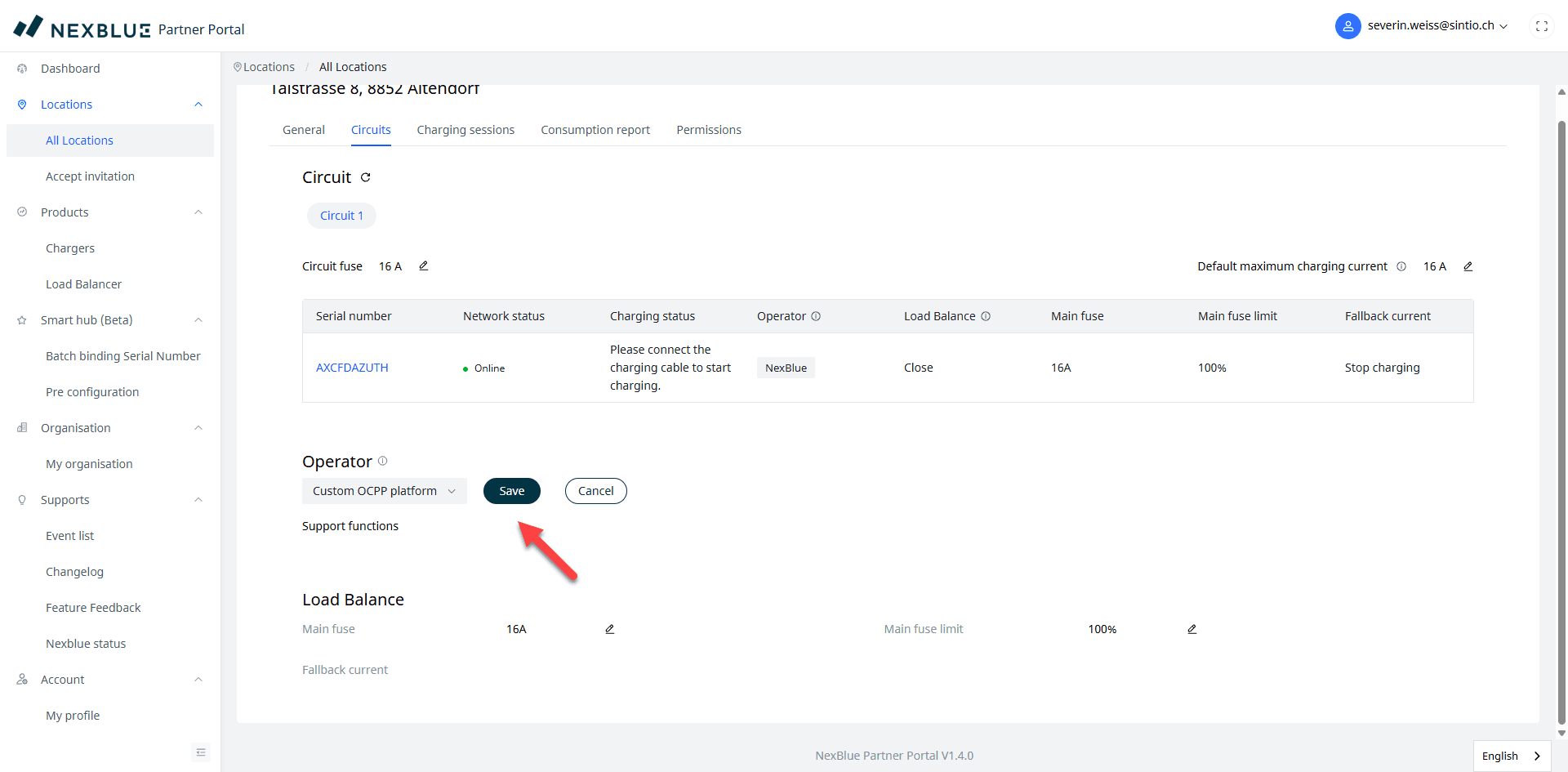
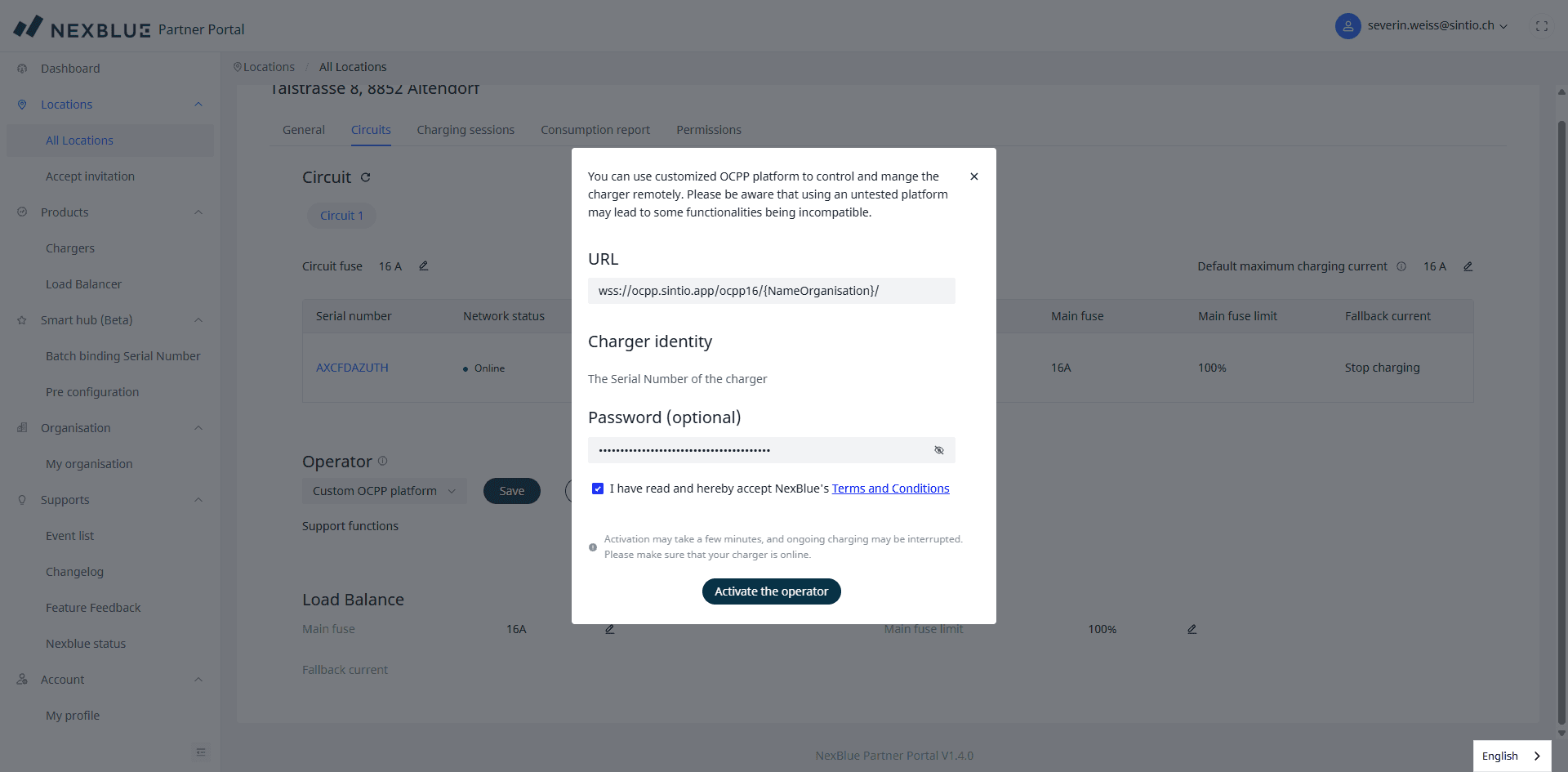
Select Custom OCPP platform from the operator dropdown and confirm with Save.
A dialog with the OCPP configuration fields will open. Enter the following values:
| Field | Value |
|---|---|
| URL | wss://ocpp.sintio.app/ocpp16/YourOrganisation/ |
| Charger identity | Serial number of the charger (keep default value) |
| Password | OCPP password from the Sintio Portal |
Nexblue charging stations allow individual OCPP configurations to be set at the station level. These settings take priority over the OCPP configuration defined at the location level. Therefore, if you experience connection issues, check whether the charging station has a custom OCPP configuration that may be preventing the connection to the Sintio portal.
The OCPP URL and password of your organisation can be found in the Sintio Portal under Org. Details → OCPP Server. More details about your OCPP credentials are available here.
Check the box «I have read and hereby accept NexBlue's Terms and Conditions» and then click Activate the operator.
Within a minute the charger will appear in the Sintio Portal.
A guide for configuring the charger in the Sintio Portal can be found here.