OCPP Integration Hager Chargers
Hager Witty chargers can be configured via the Hager load manager or as individual stations using the IP address.
Load Manager
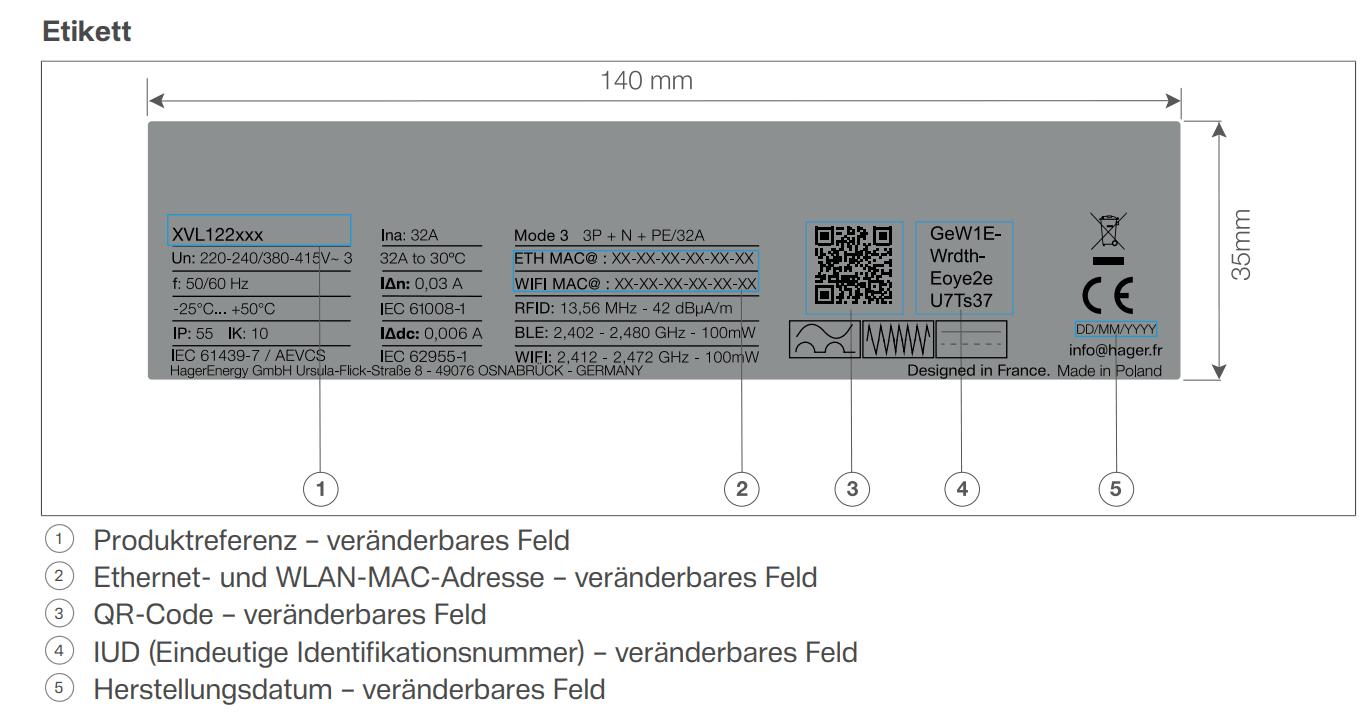
Ensure that the Hager load manager and your charger are integrated into the same network. To access the web interface, enter the address http://hager-llm-[6last_characters_SUID].local/ (opens in a new tab) You can find the SUID on your device and on the packaging. Open the local web interface in your browser and create an account.
The load manager will automatically recognize chargers in the same network. Once your chargers are found, define the phase allocation.
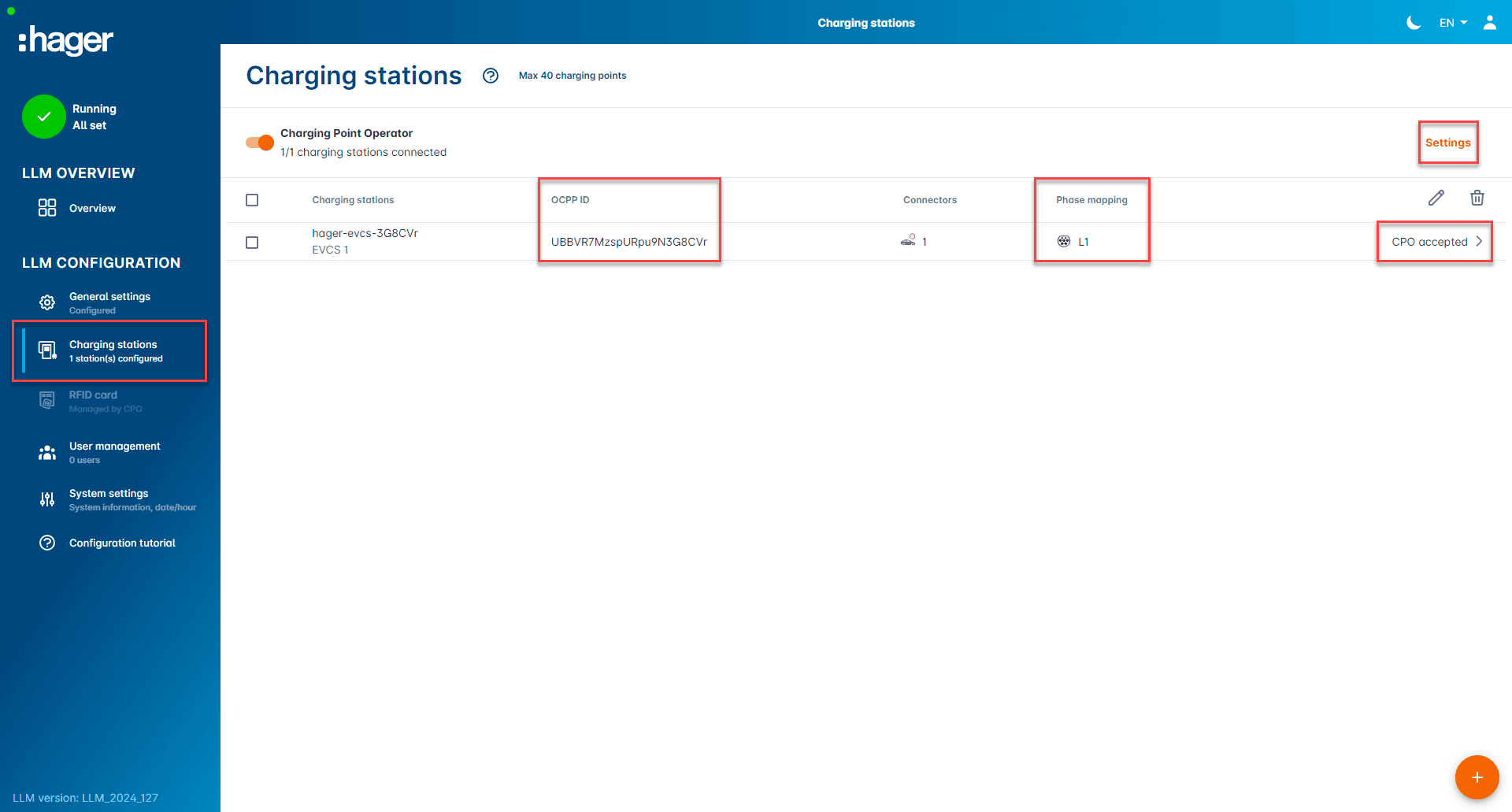
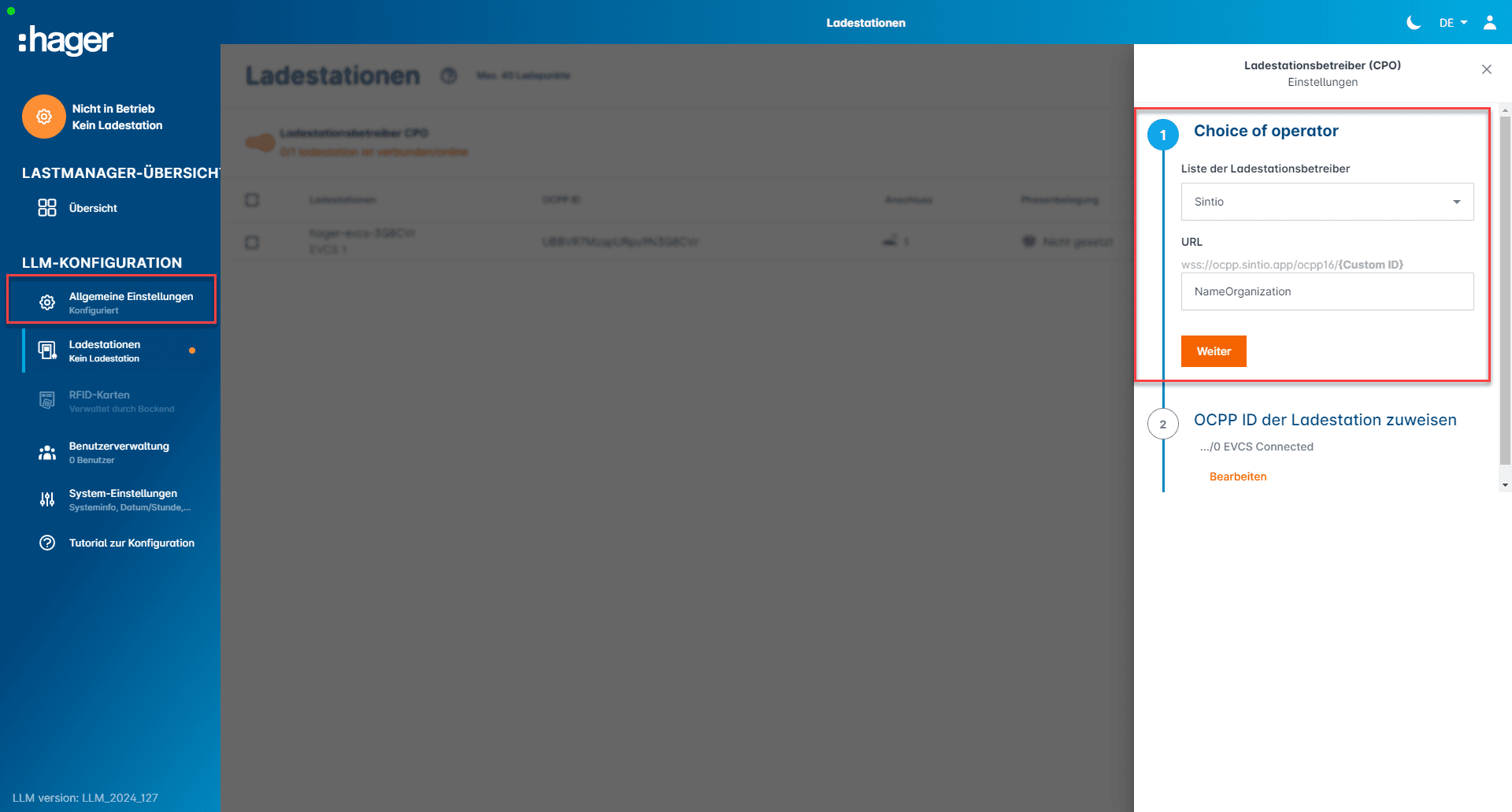
Select Sintio as the billing provider under Settings. Define the name of your organization similar to the Sintio portal. You can find the OCPP-ID in the general settings, which is specified for the Hager charger. How to find the password is described here.
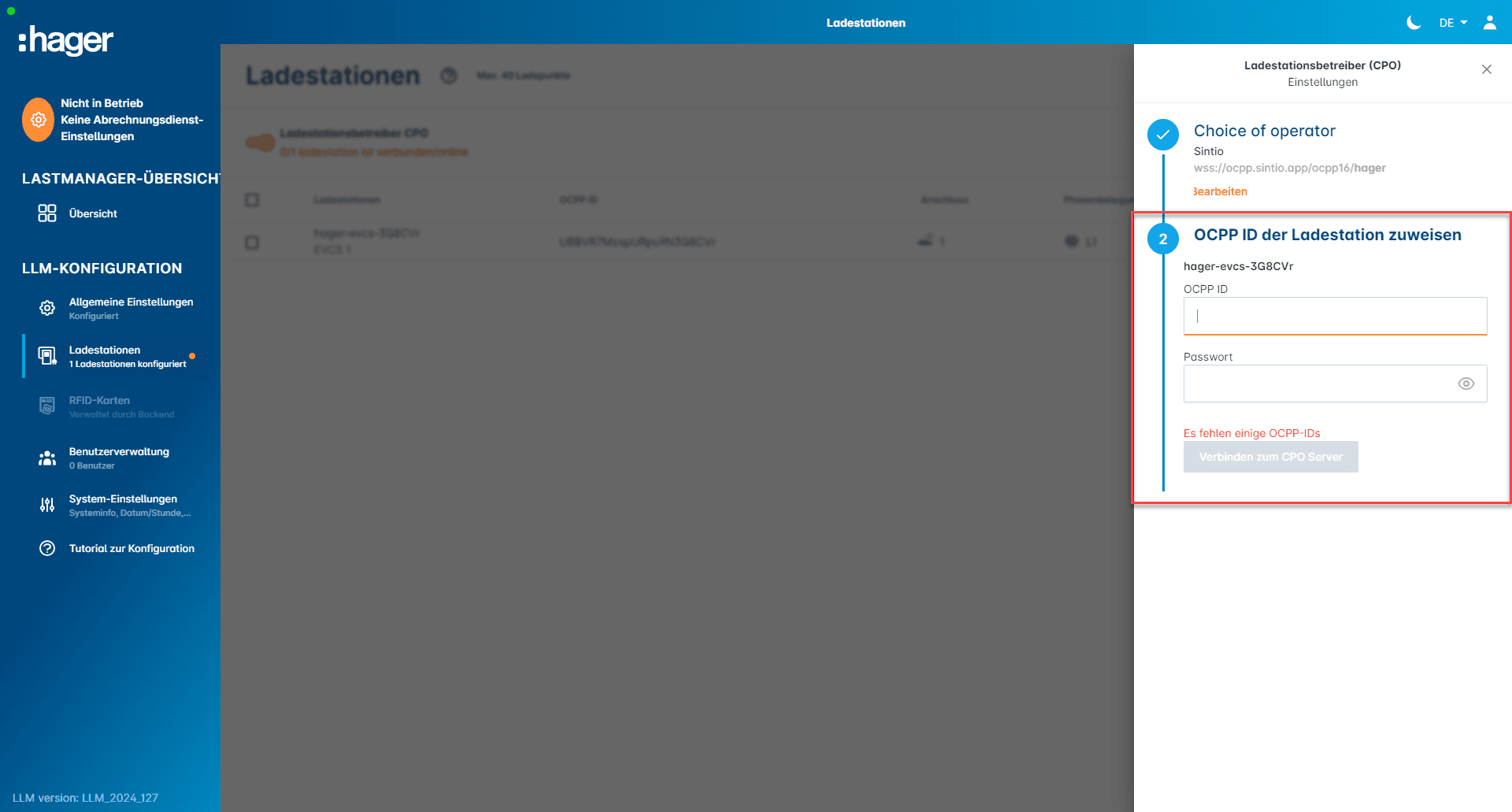
Chargers
Hager witty one, plus & pro
Download the mobile app Hager Charge for Android or iOS. Open the app and connect to the charger via Bluetooth. You will be guided step-by-step through the installation.
To link the Hager witty one with the Sintio-Portal, proceed as follows:
- Navigate to the menu via the three dots at the bottom left of the home screen.
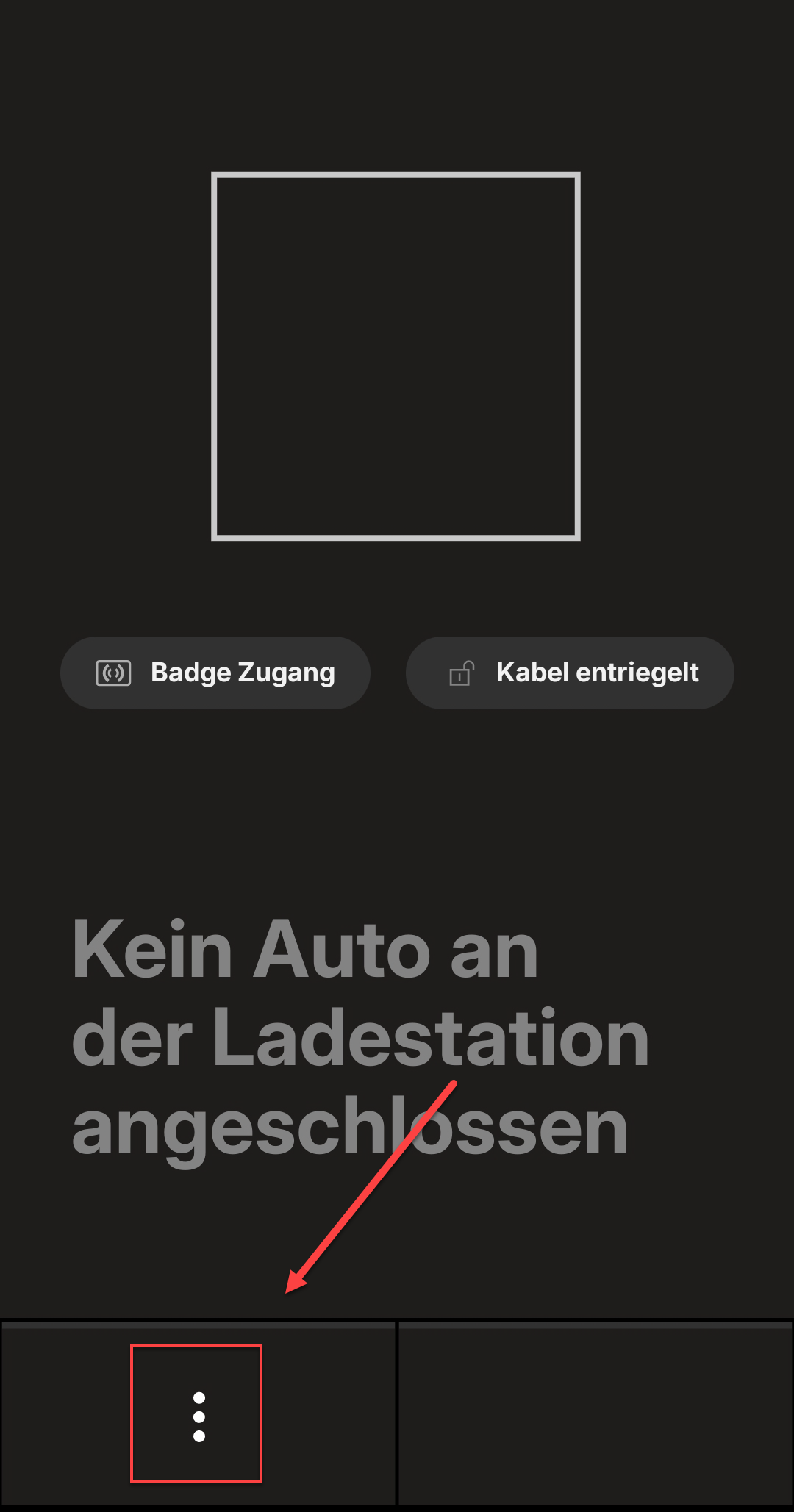
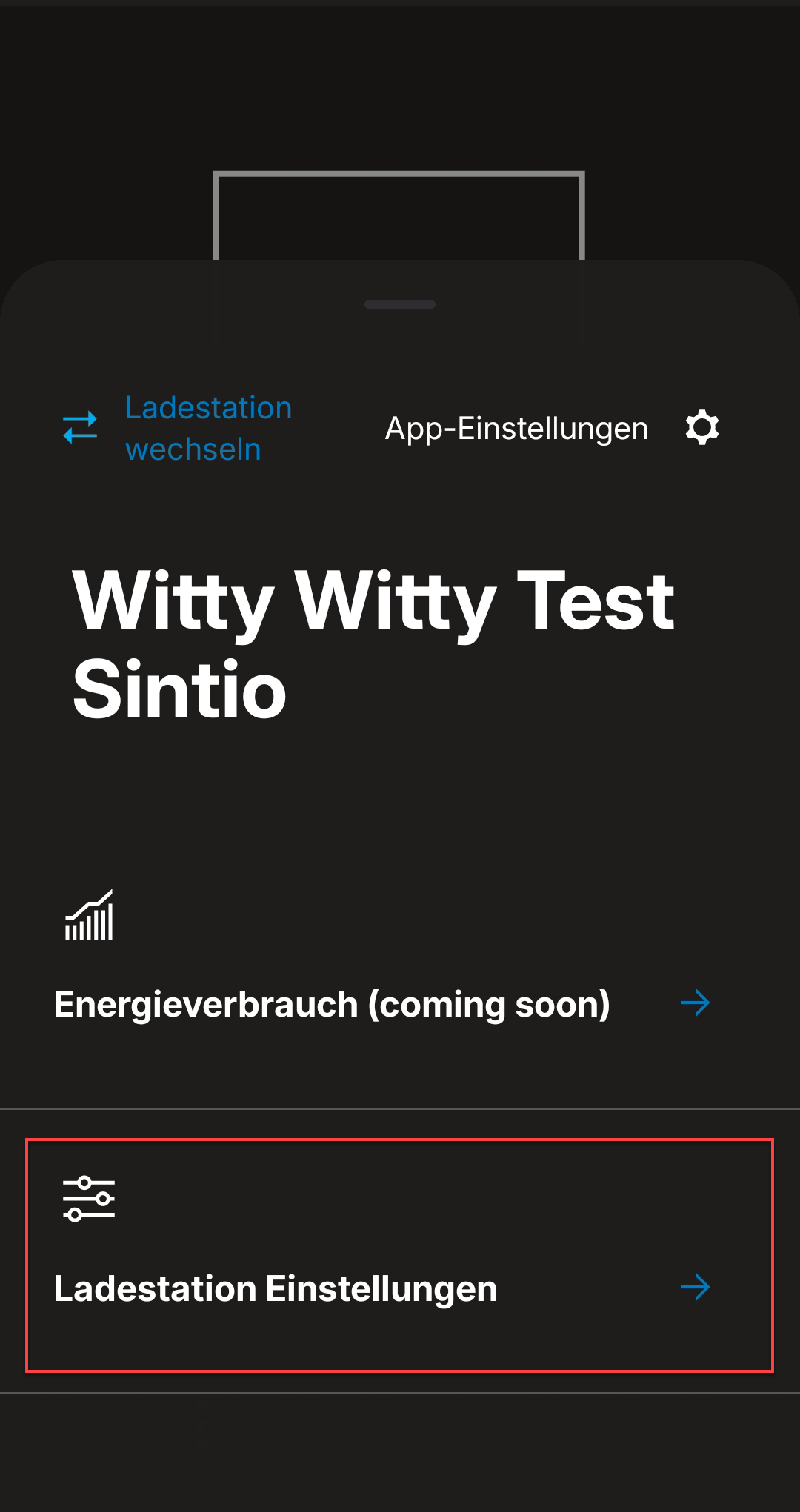
- Select Charger Settings.
- Select Company Car at Home from the available settings.
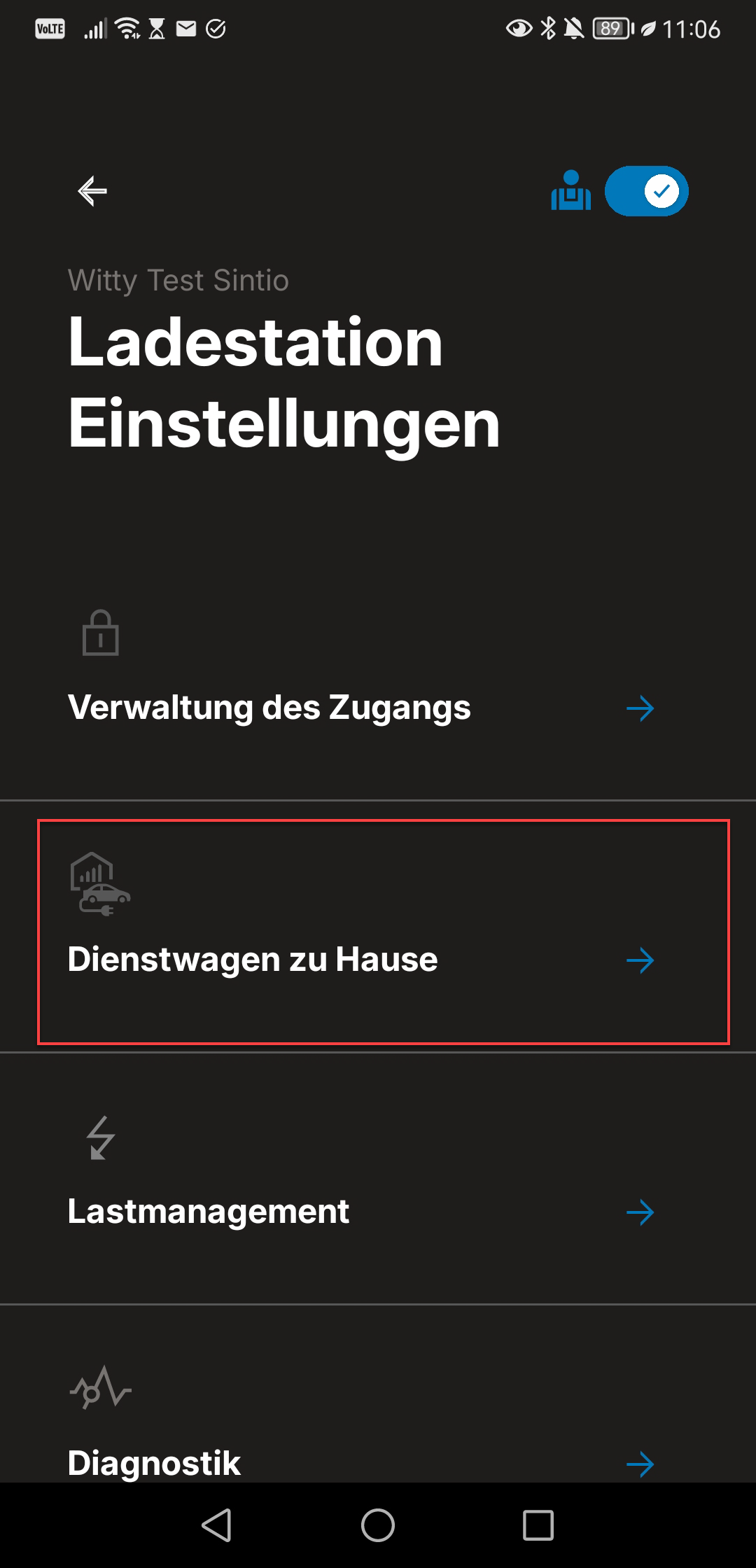
- Make the following OCPP settings:
| Setting | Description / Value |
|---|---|
| Operator address of the charger | wss://ocpp.sintio.app/ocpp16/YourOrganizationName/ |
| OCPP ID | This name will be displayed in the Sintio portal as the name of the charger. |
| Authentication type | Select With Password |
| Password | Password from the Sintio Portal. |
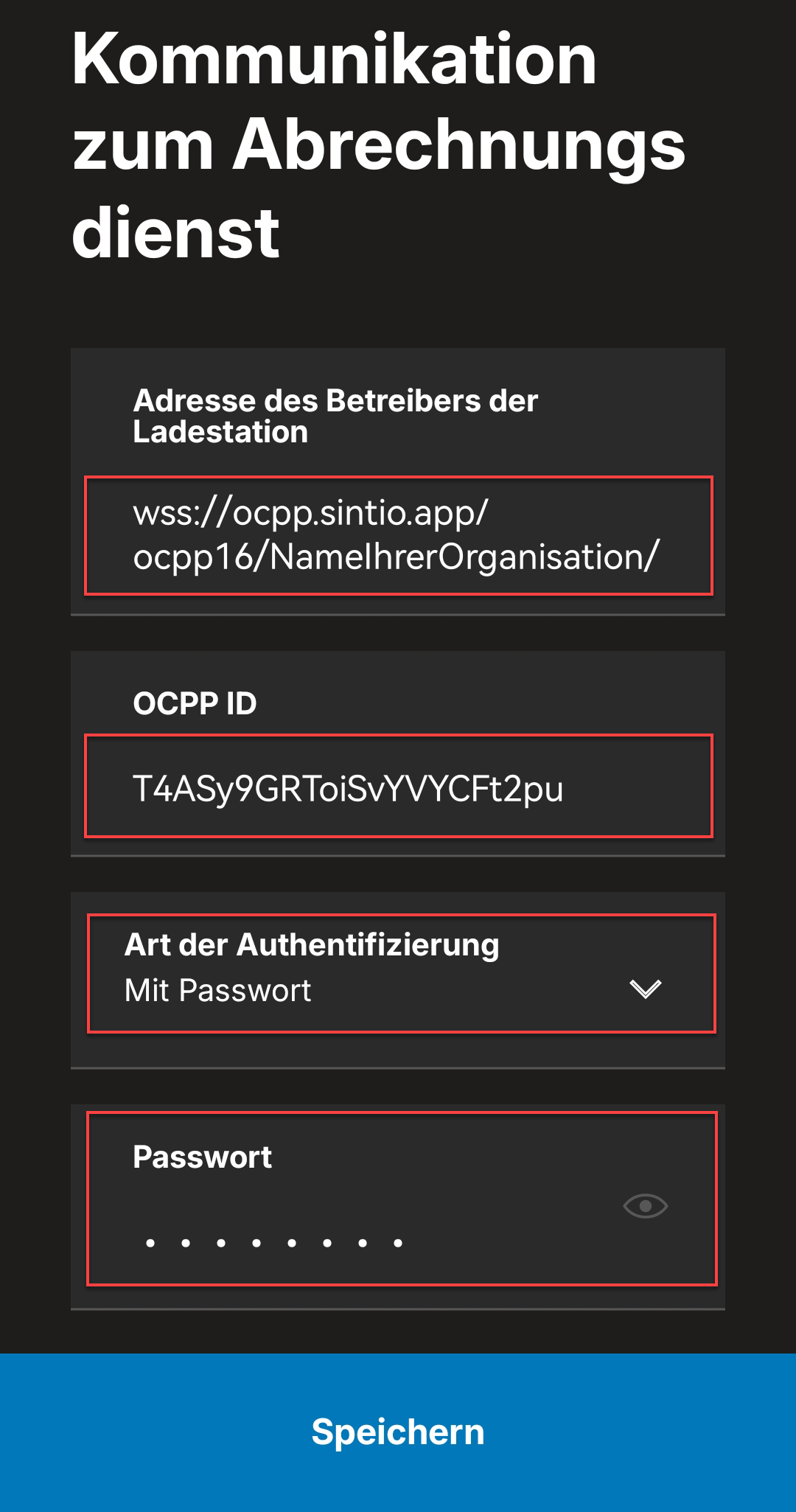
The charger will register with the Sintio-Portal, and you can complete the integration of chargers. Instructions on configuring the chargers in the Sintio-Portal can be found here.
Hager witty park 2
Ensure that the Hager Witty Park 2 is connected to the local network. To access the web interface, enter the address https://hager-evcs-[6last_characters_SUID (opens in a new tab)].
You will find the SUID on your device and in the user manual. Open the local web interface in your browser and create an account.
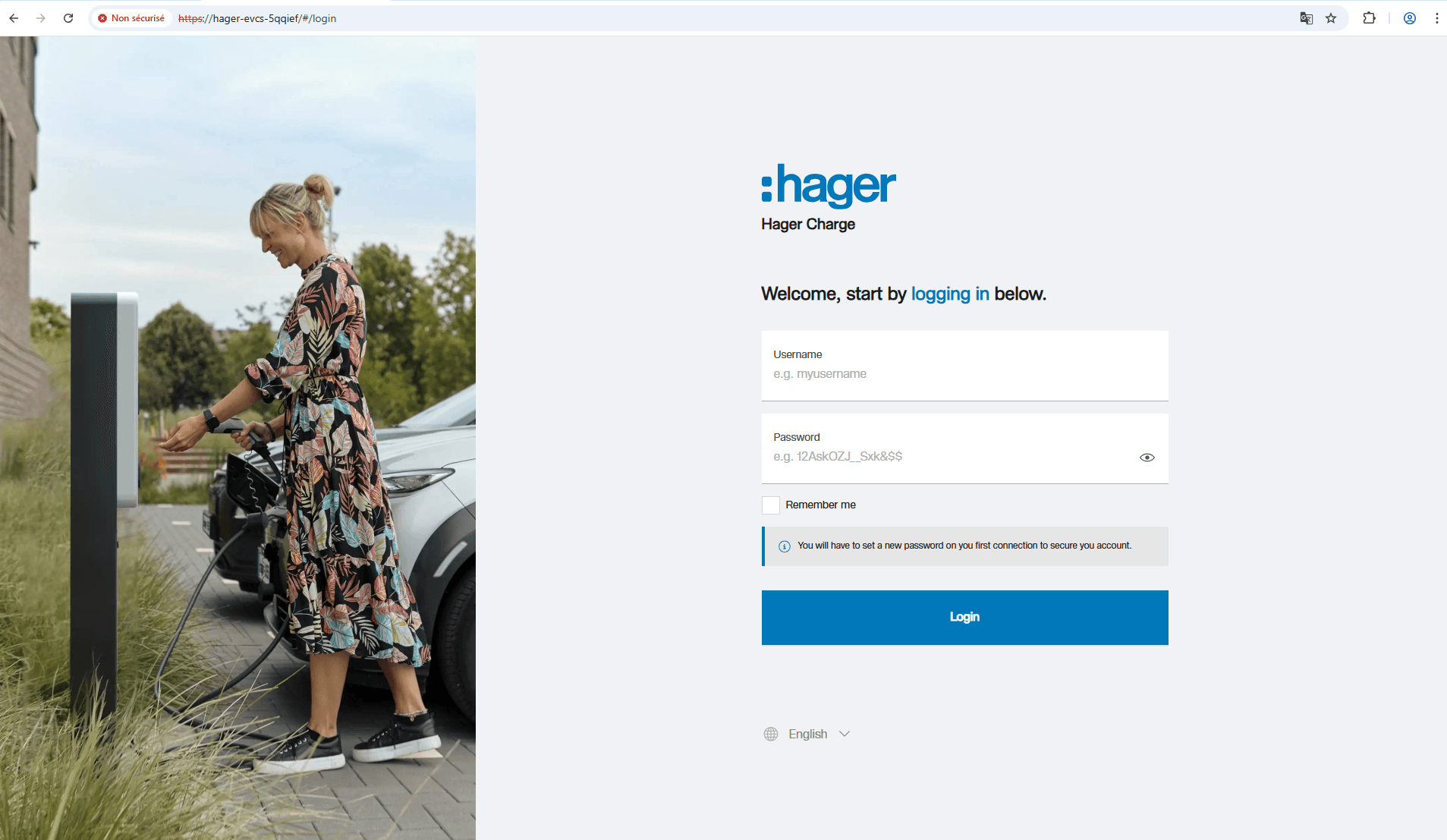
Enter the login data as follows:
| Input | Description / Value |
|---|---|
| Username | admin |
| Password | First four letters of the serial number |
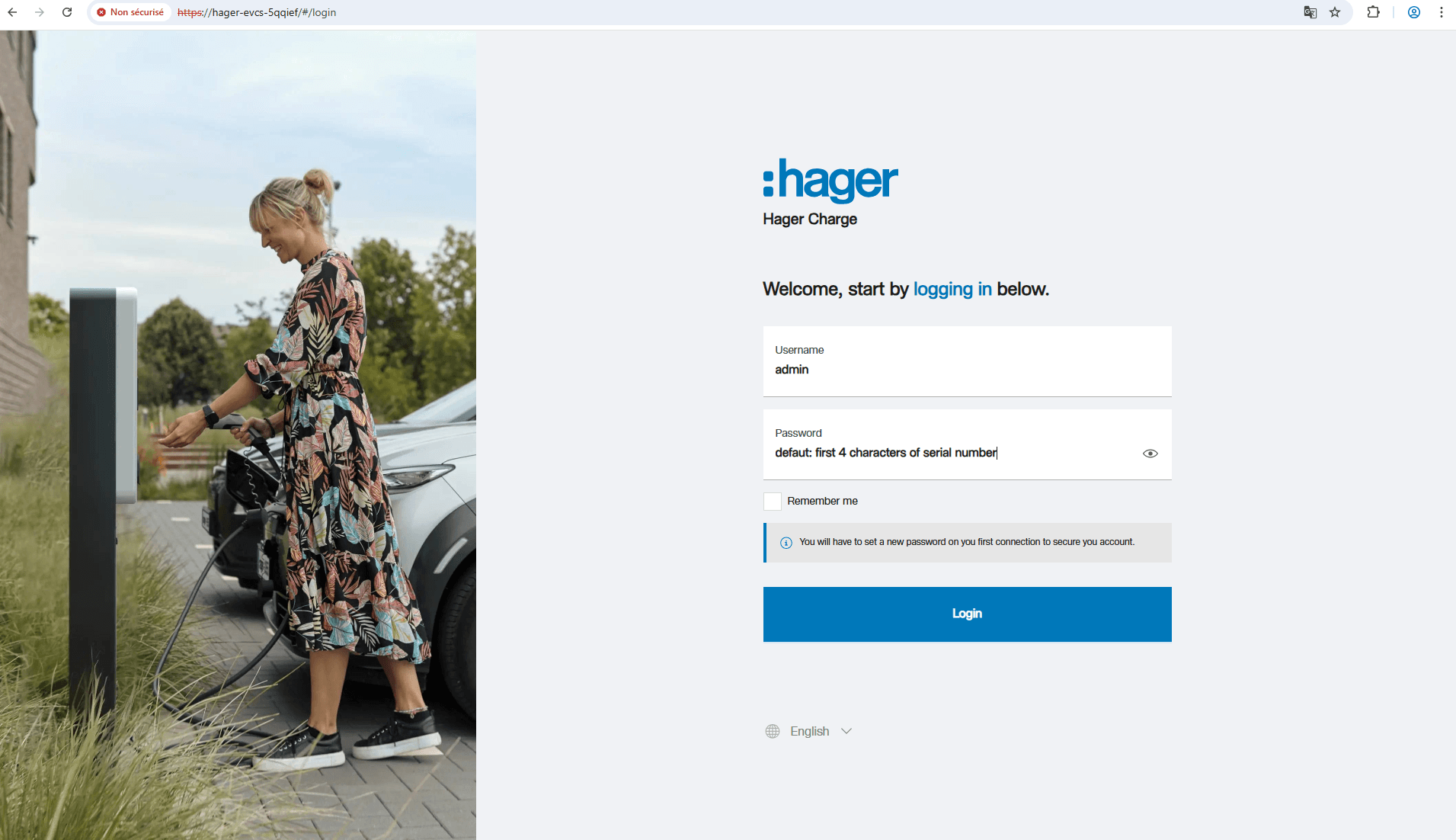
After successful login, you will be taken to the dashboard and see the charger on the web portal.
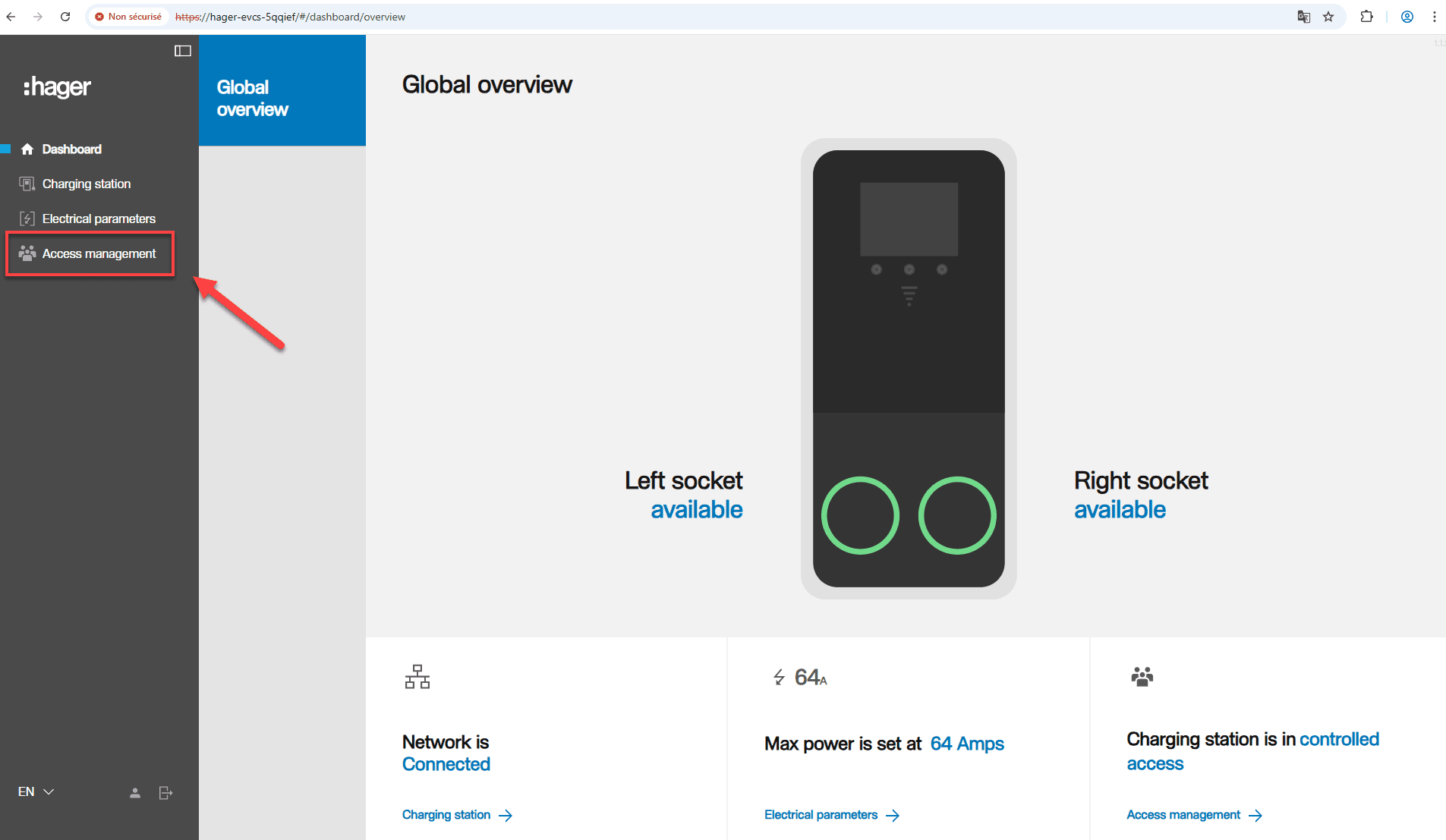
Select Access management, then on the right side of the screen choose Controlled access. Save the settings.
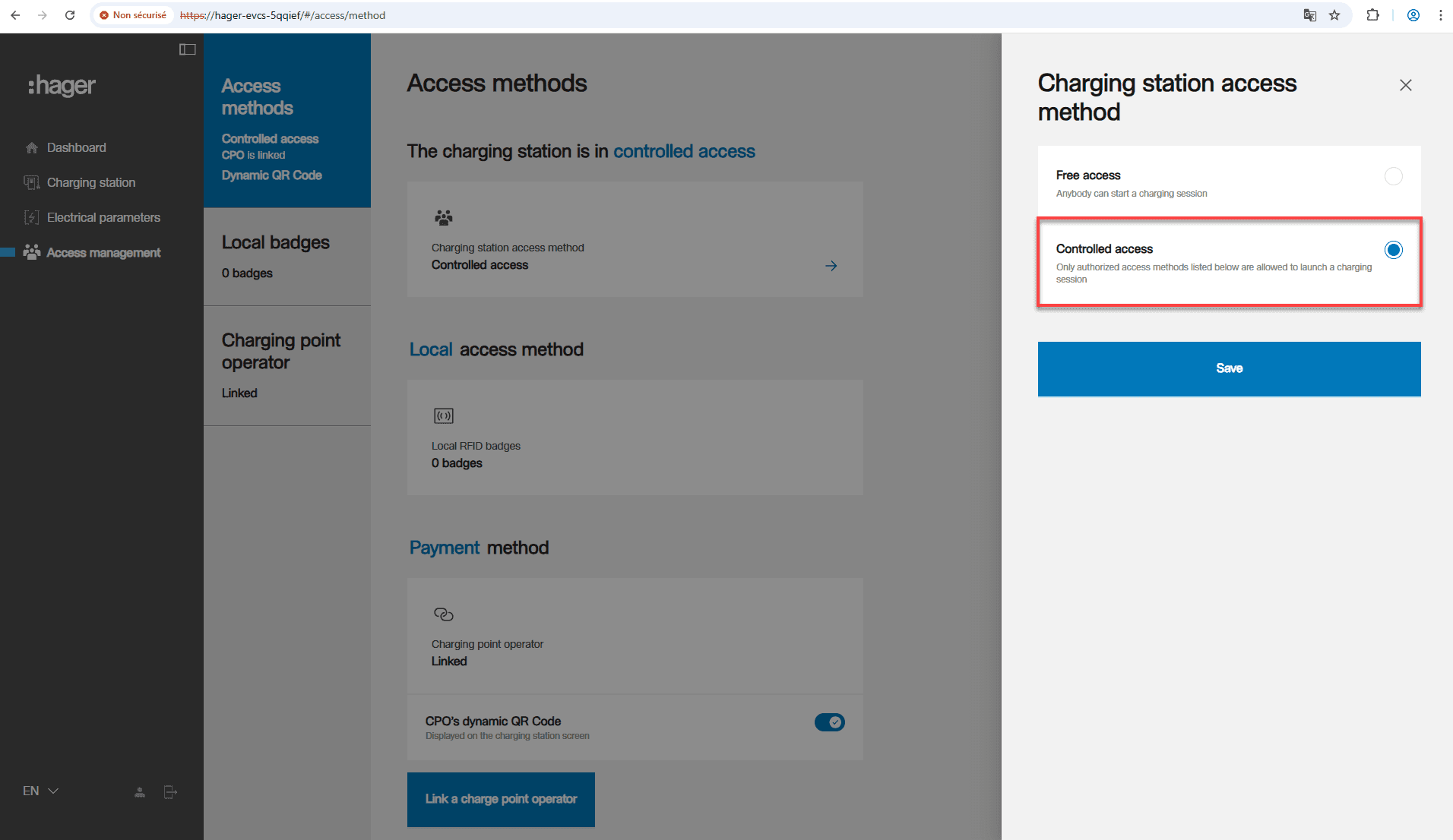
Set the OCPP data as described in the table below:
| Setting | Description / Value |
|---|---|
| Address of the charger operator | wss://ocpp.sintio.app/ocpp16/NameIhrerOrganisation/ |
| OCPP ID | This name will be displayed in the Sintio portal as the name of the charger. |
| Authentication method | Basic |
| Password | Password from the Sintio portal. |
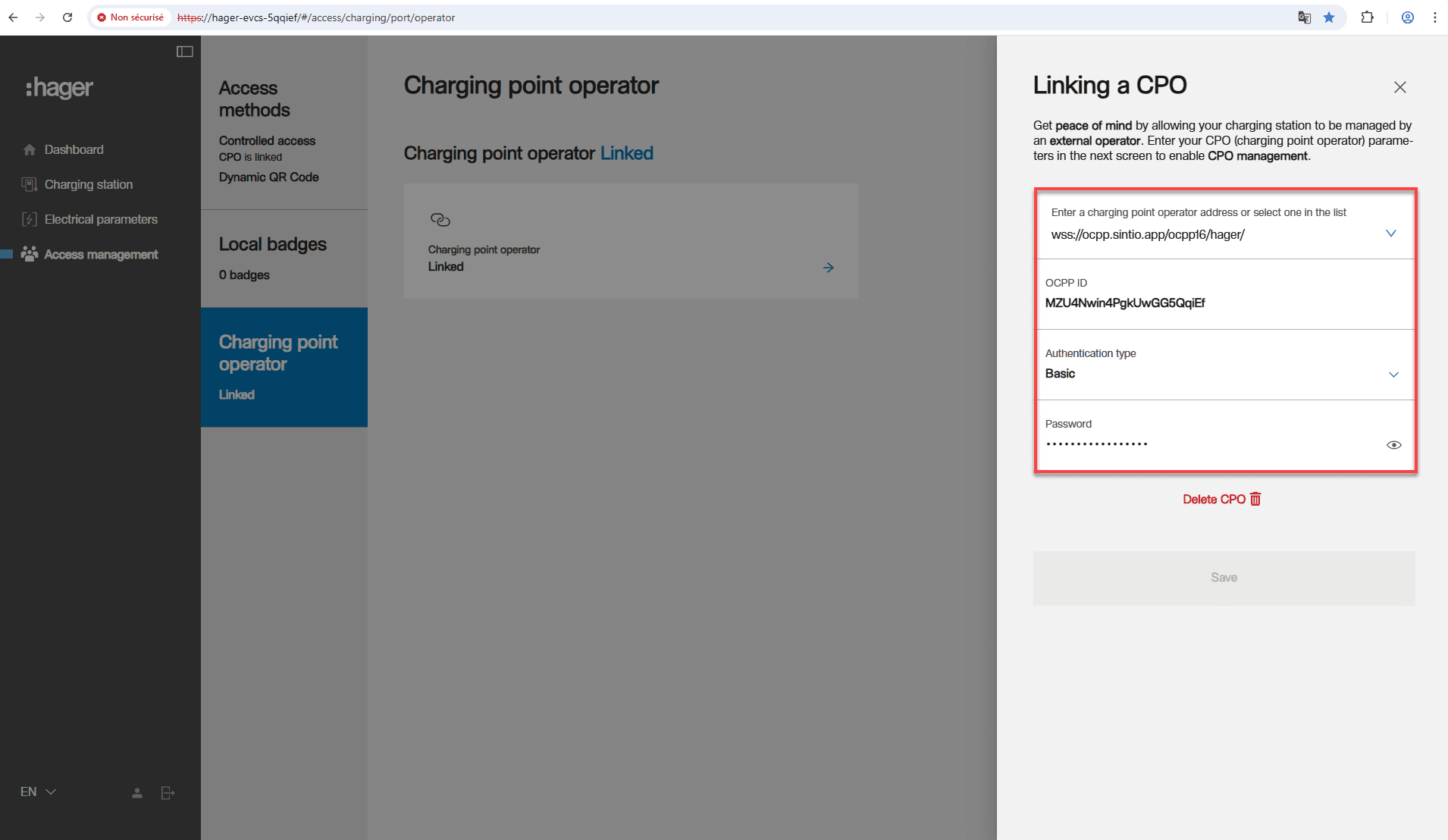
The charger will register itself in the Sintio portal, and you can complete the onboarding of the chargers. Instructions for configuring the charger in the Sintio portal can be found here.
OCPP Custom Keys
With the Hager witty park 2 you have the option to display QR codes for public charging or support directly on the screen. Here you will find instructions on how you can do this as an administrator of an organization.
-
Navigate to the Hager witty park 2 within your organization that you want to configure.
-
On the corresponding charger, select Charger Configuration.
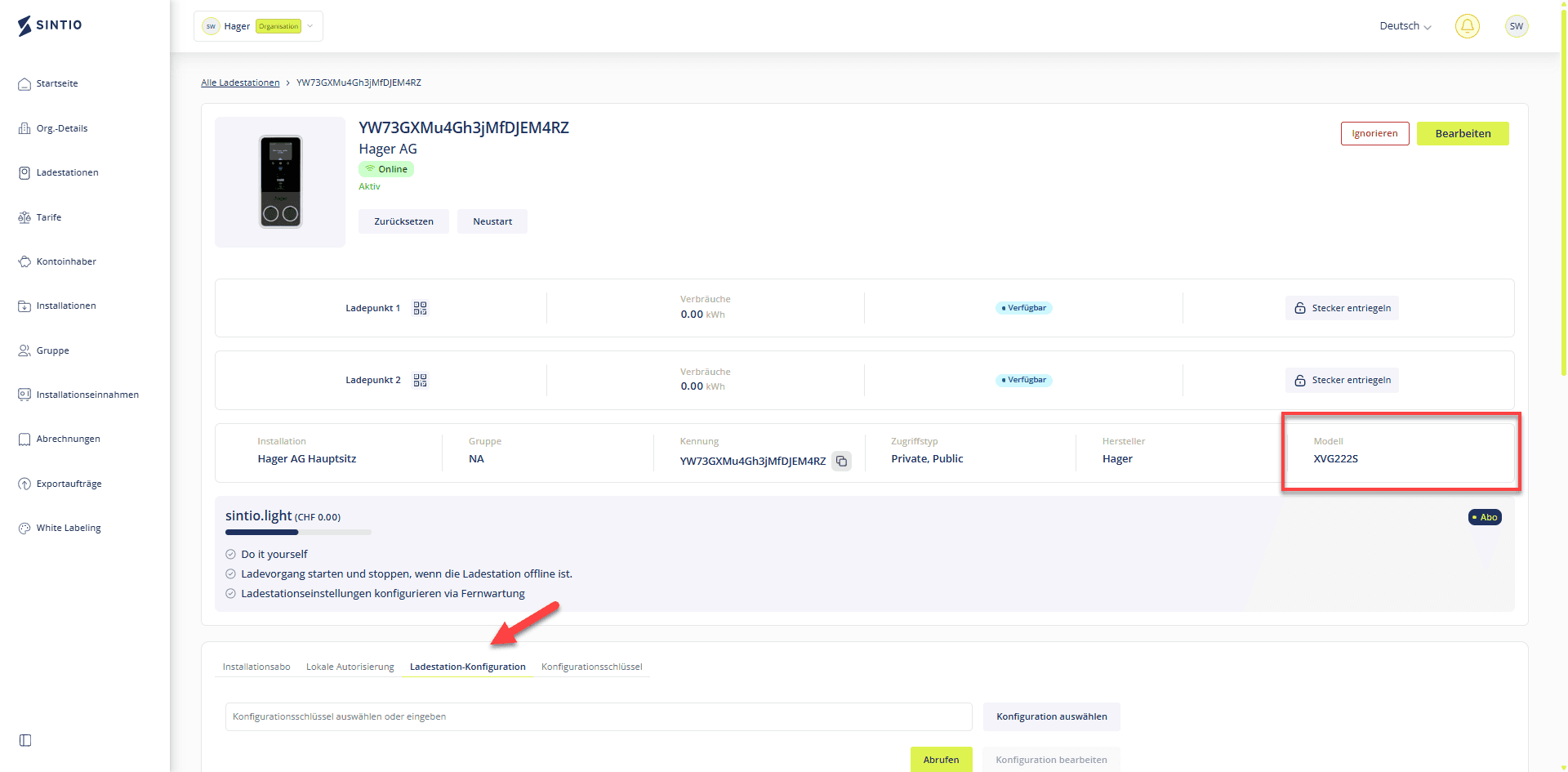
- Select your Custom Key based on the desired functionality:
| Custom Key | Description |
|---|---|
| HagerSupportScreenQrCodeContent | Provide contact information via QR code |
| HagerSupportScreenPhoneNumber | Provide a phone number directly on the display |
| HagerQrCodeURL1 | Provide URL information via QR code, for example for public charging |
| HagerQrCodeURL2 | Provide URL information via QR code, for example for public charging |
- Retrieve the value of the Custom Key as shown in the figure below.
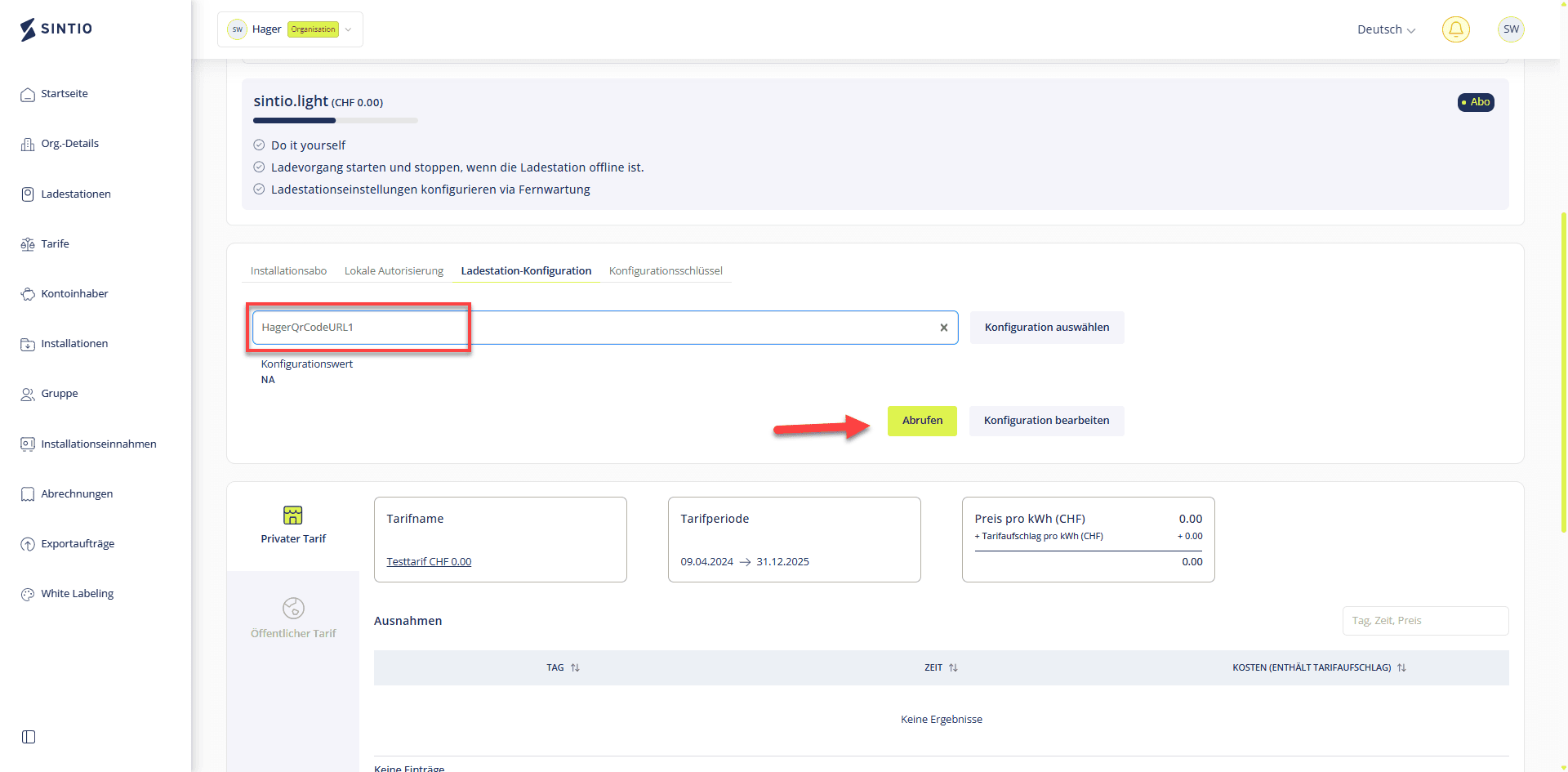
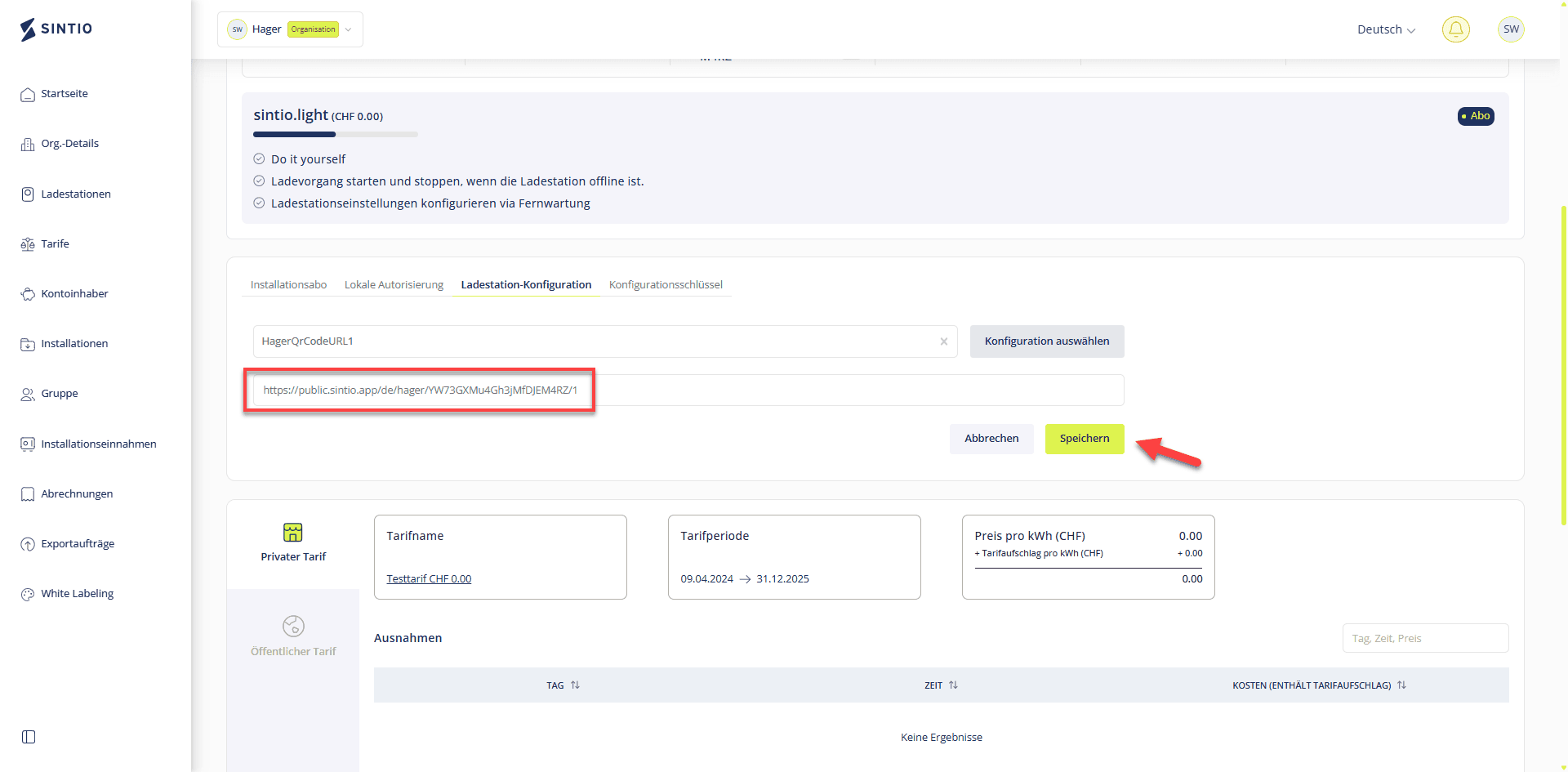
- Modify and save the Custom Key, and the information will appear on the display of the witty park 2.
Serial number
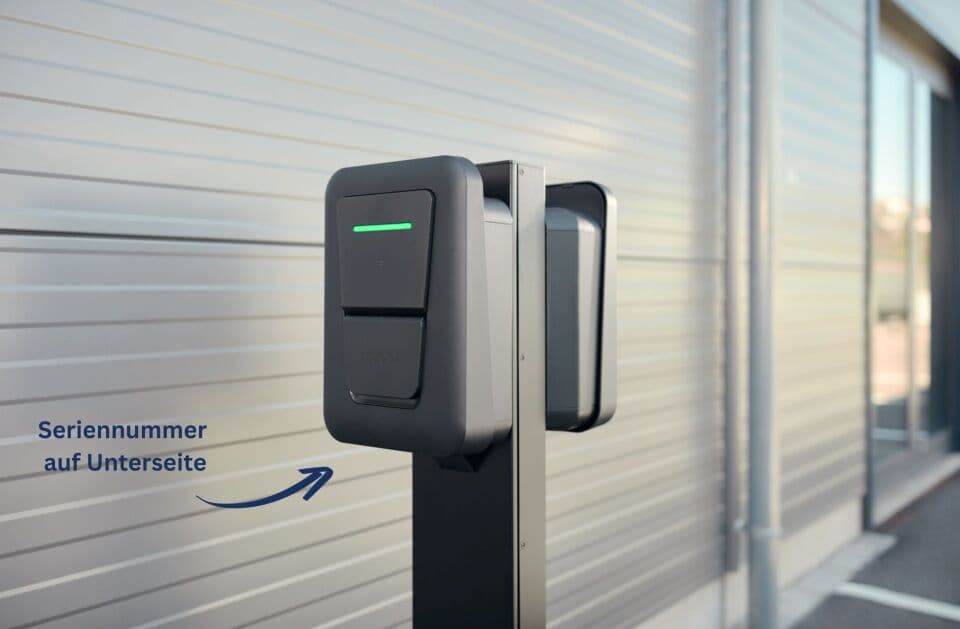
The serial number is located on the bottom of the charger.