OCPP Integration Schneider Electric Chargers
ProAC
The Pro AC charger is configured via the Schneider Electric eSetup App. Install the app on your smartphone and connect to the charger via Bluetooth. The Bluetooth connection remains active for two hours; after that, the charger needs to be restarted.
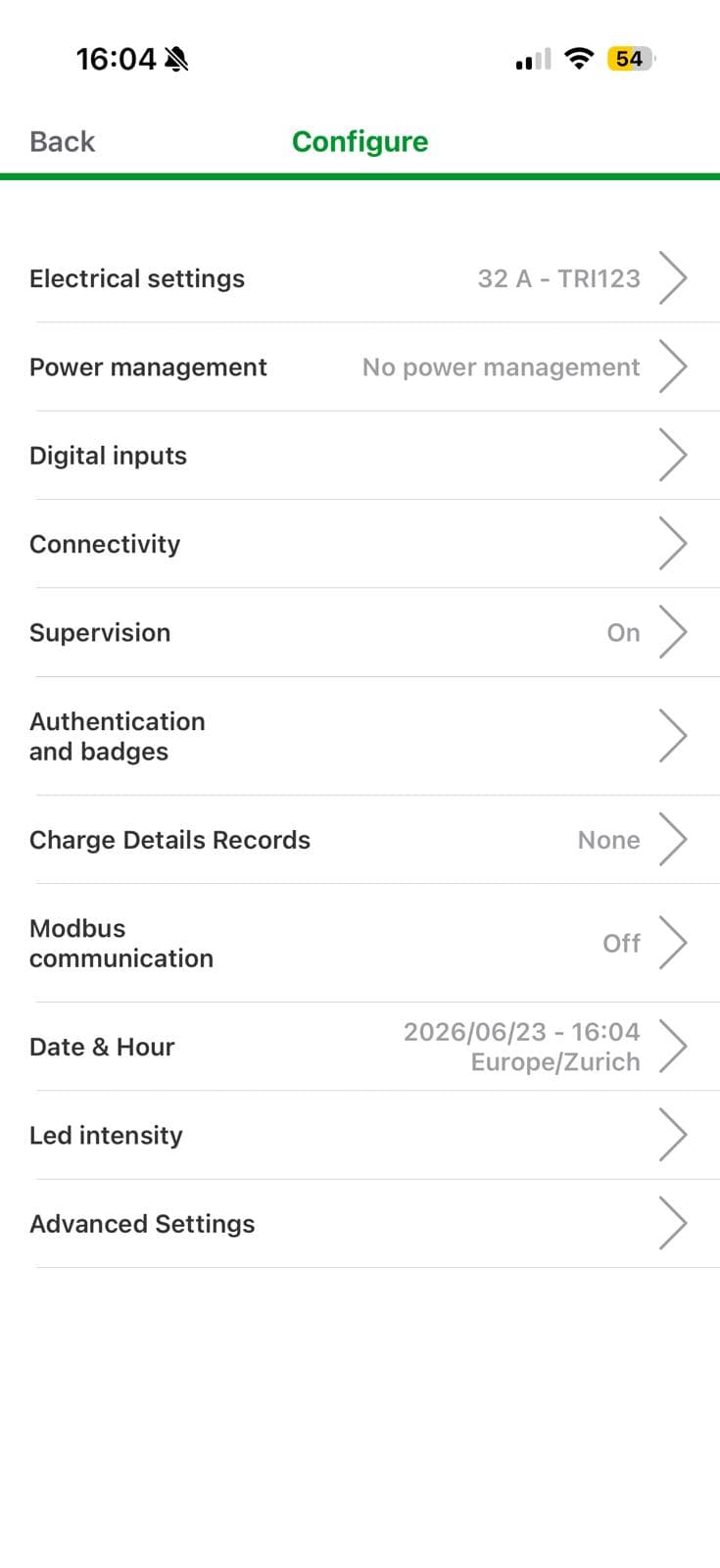
Open the Configuration menu for the desired charger in the app and tap Supervision.
Enable the Supervision toggle and enter the OCPP URL of your organisation in the REMOTE SUPERVISION URL field. The CHARGING STATION IDENTIFIER corresponds to the serial number of the charger and is required when adding it in the Sintio Portal. It must be unique and can be left as pre-configured.
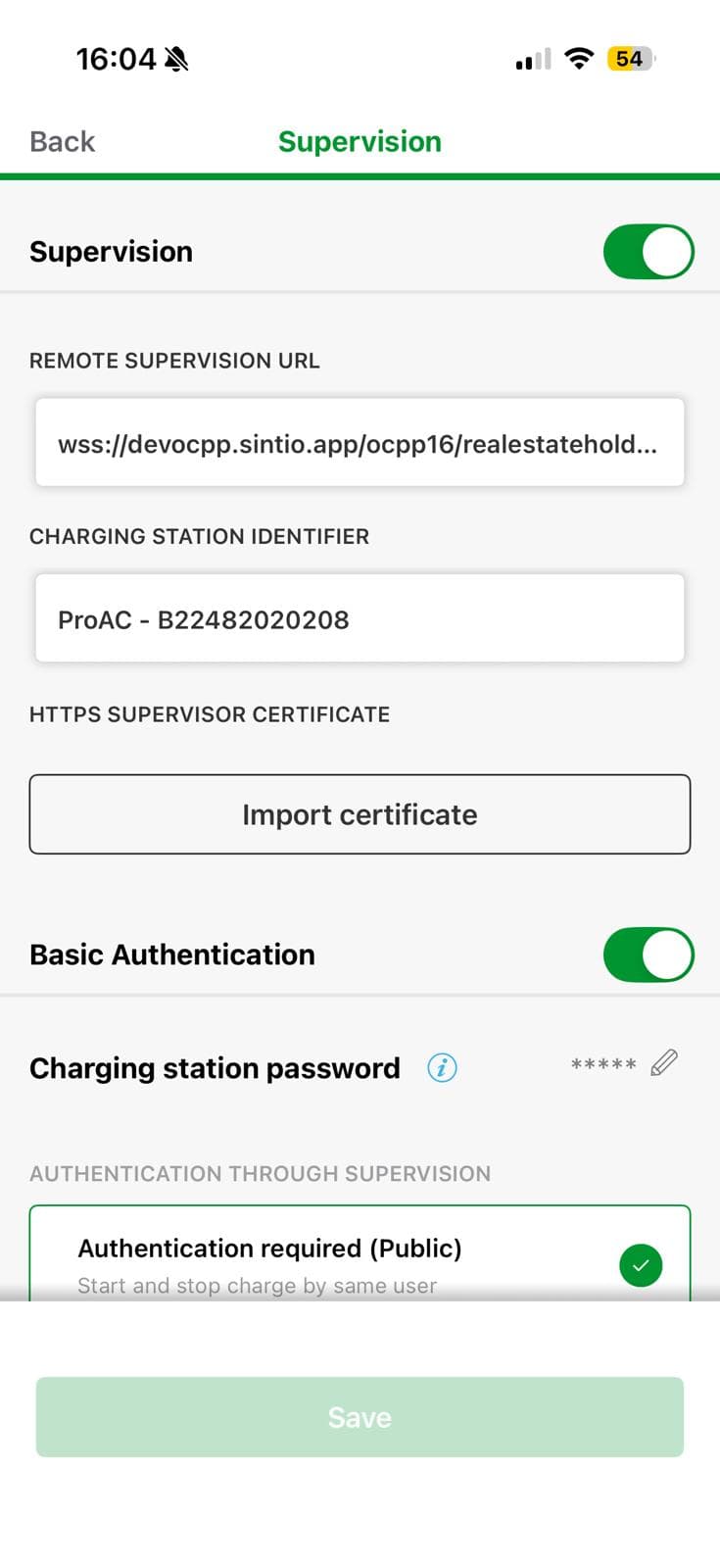
| Field | Value |
|---|---|
| REMOTE SUPERVISION URL | wss://ocpp.sintio.app/ocpp16/YourOrganisation/ |
| CHARGING STATION IDENTIFIER | Serial number of the charger (filled in automatically) |
Then enable Basic Authentication and select Authentication required (Public) under AUTHENTICATION BY SUPERVISION.
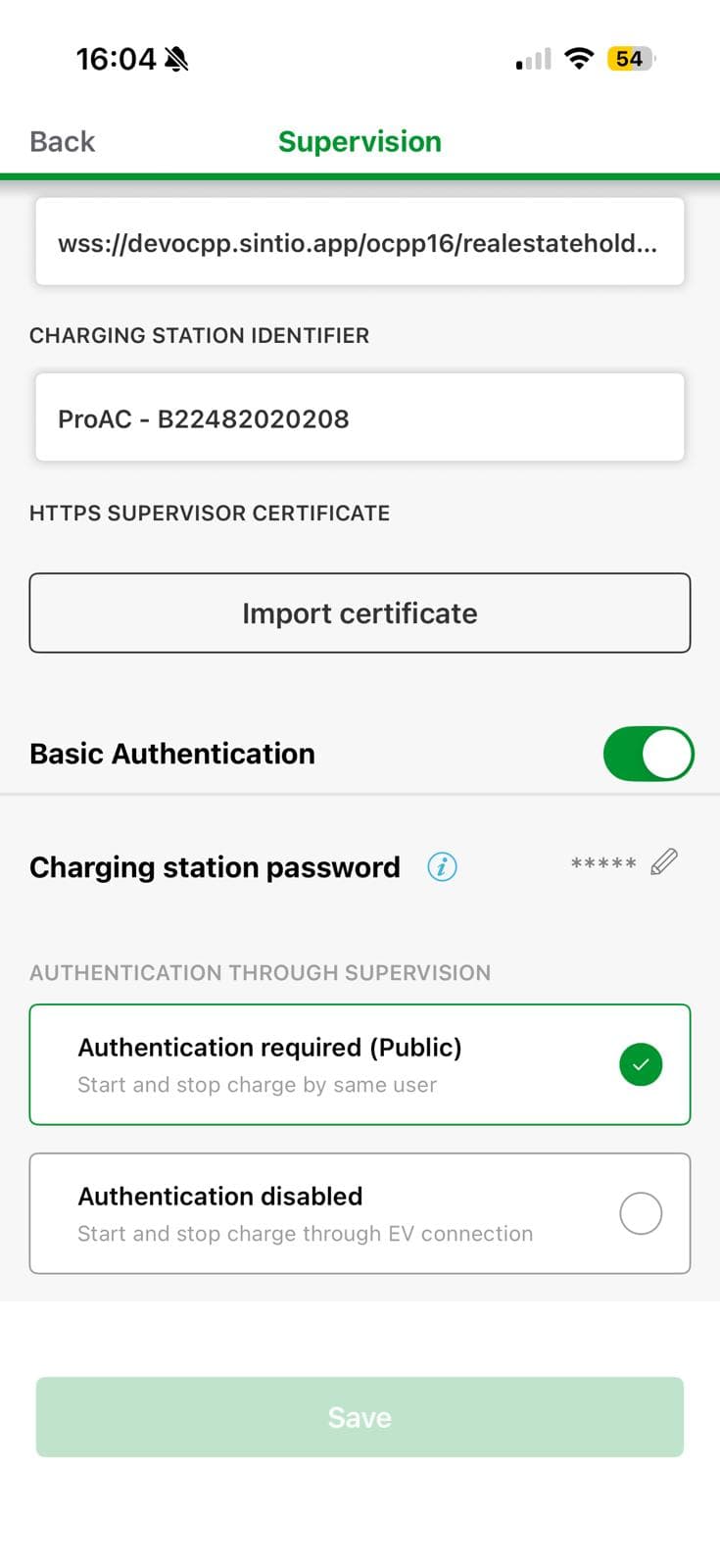
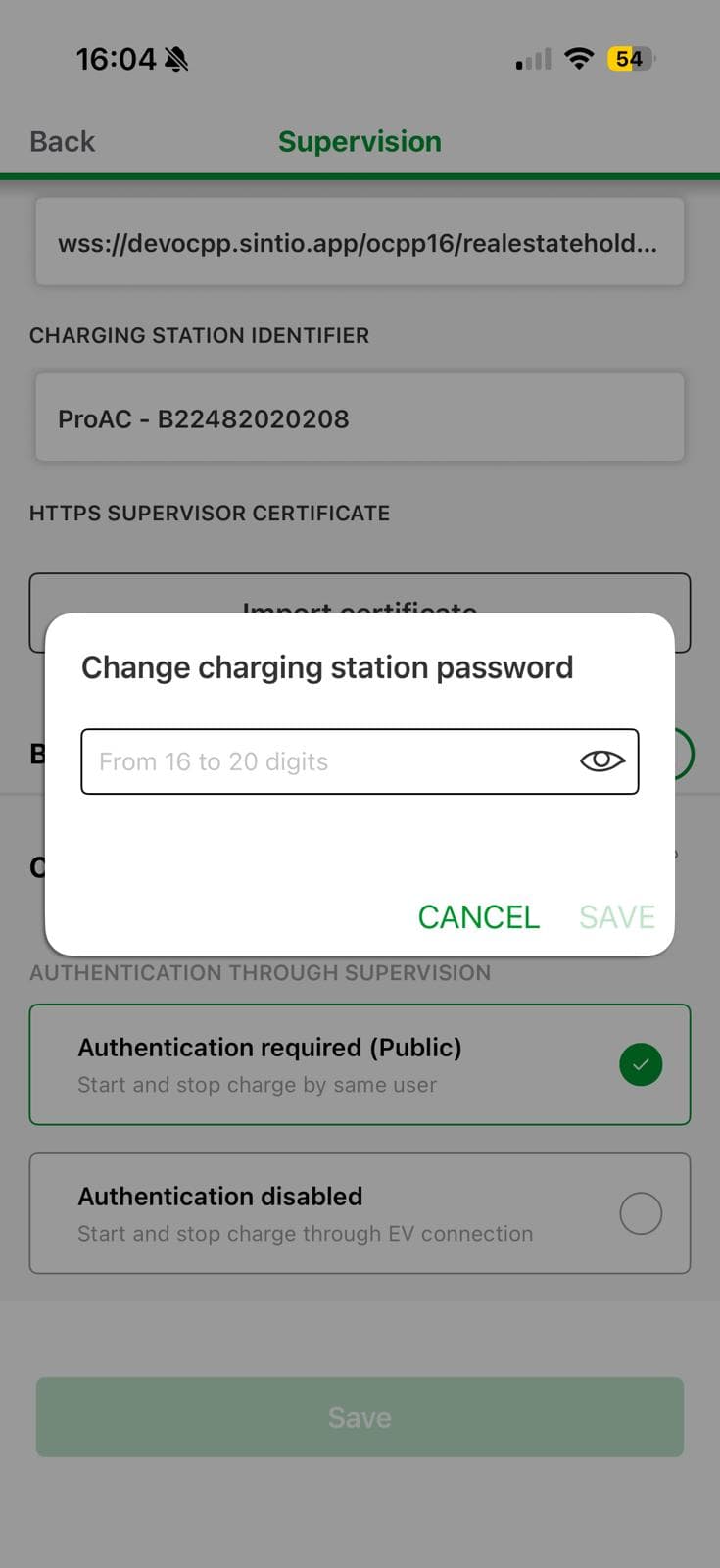
Tap Charging station password and enter the OCPP password of your organisation.
The OCPP password must be between 16 and 20 characters long. Make sure the password stored in the Sintio Portal meets this requirement.
Tap Save to complete the configuration. A restart of the charger will then be initiated.
The OCPP URL and password for your organisation can be found in the Sintio Portal in the navigation bar under OCPP Details. Here you can find further details about your OCPP settings.
Within a few minutes the charger will appear in the Sintio Portal.
A guide for configuring the charger in the Sintio Portal can be found here.