OCPP Integration Enelion Chargers
Lumina
The Enelion Lumina charger is configured via a web interface. After powering on, the charger automatically opens a Wi-Fi hotspot. Connect to this hotspot and then open the address 192.168.8.8 in your web browser. Log in with the following default credentials (factory settings):
| Field | Value |
|---|---|
| Username | admin |
| Password | admin |
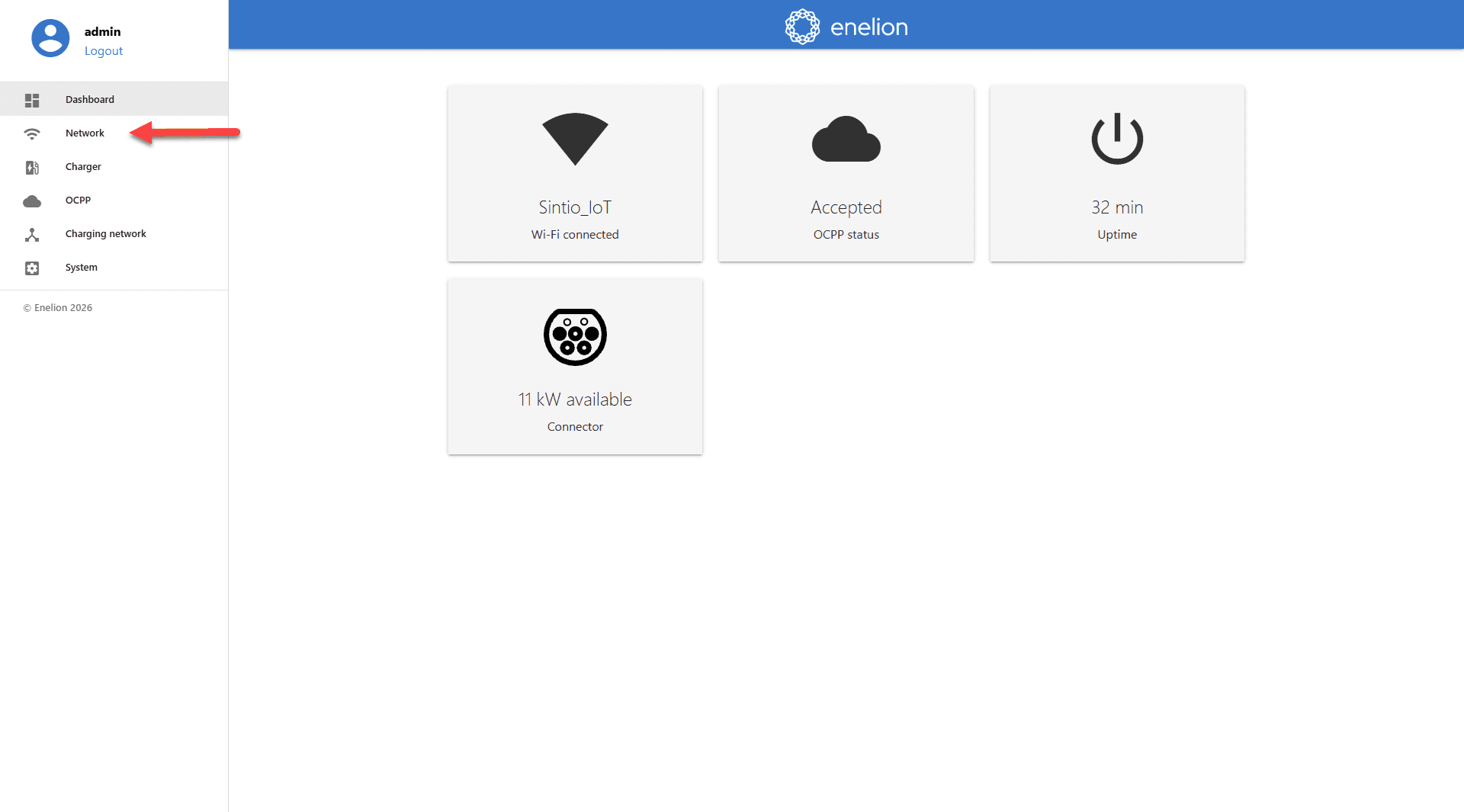
The Dashboard shows the Wi-Fi and OCPP status as well as the available charging power at a glance. Then navigate to Network in the sidebar.
Wi-Fi Configuration
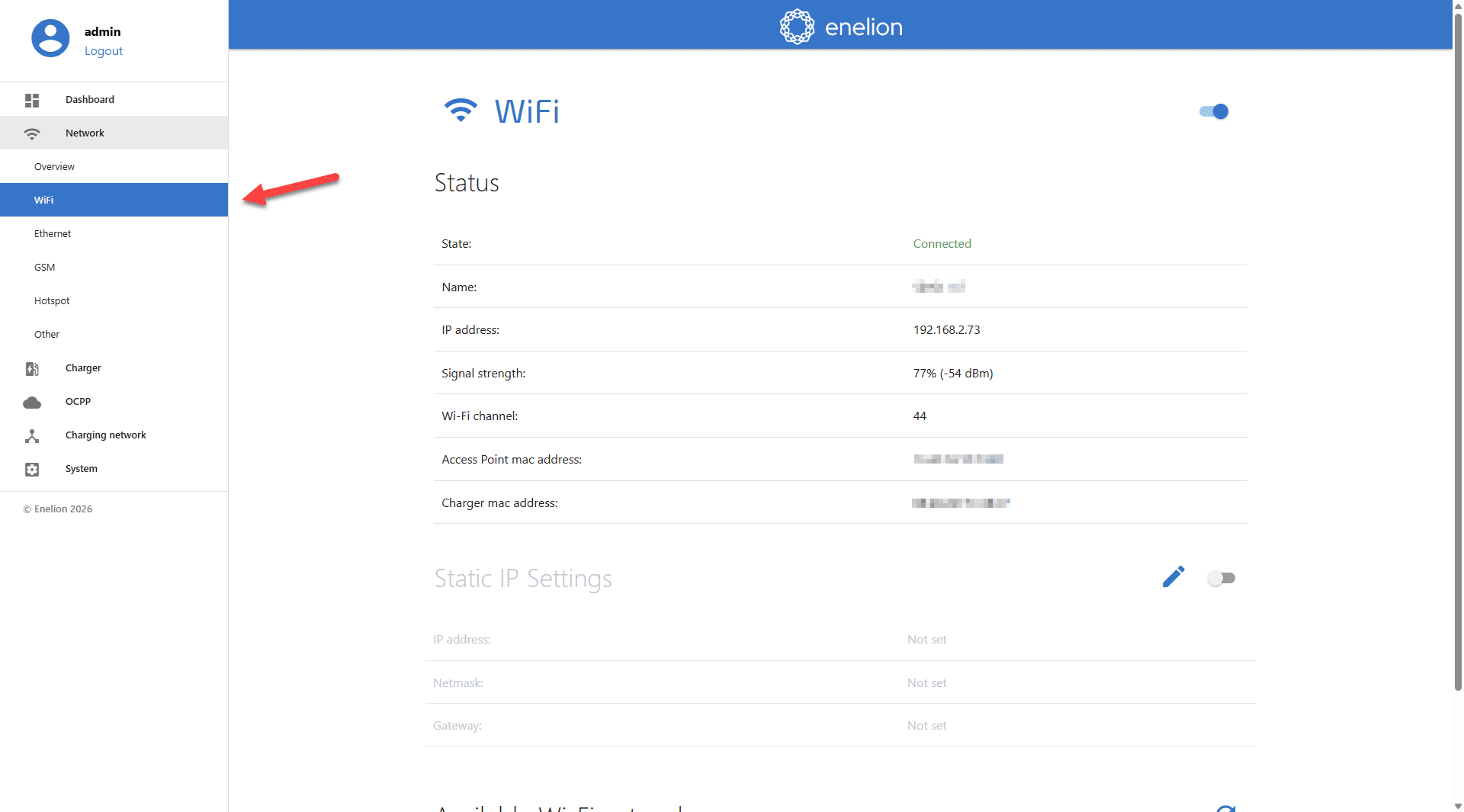
Under Network, select WiFi. Connect the charger to your local Wi-Fi network to establish an internet connection required for OCPP communication.
OCPP Configuration
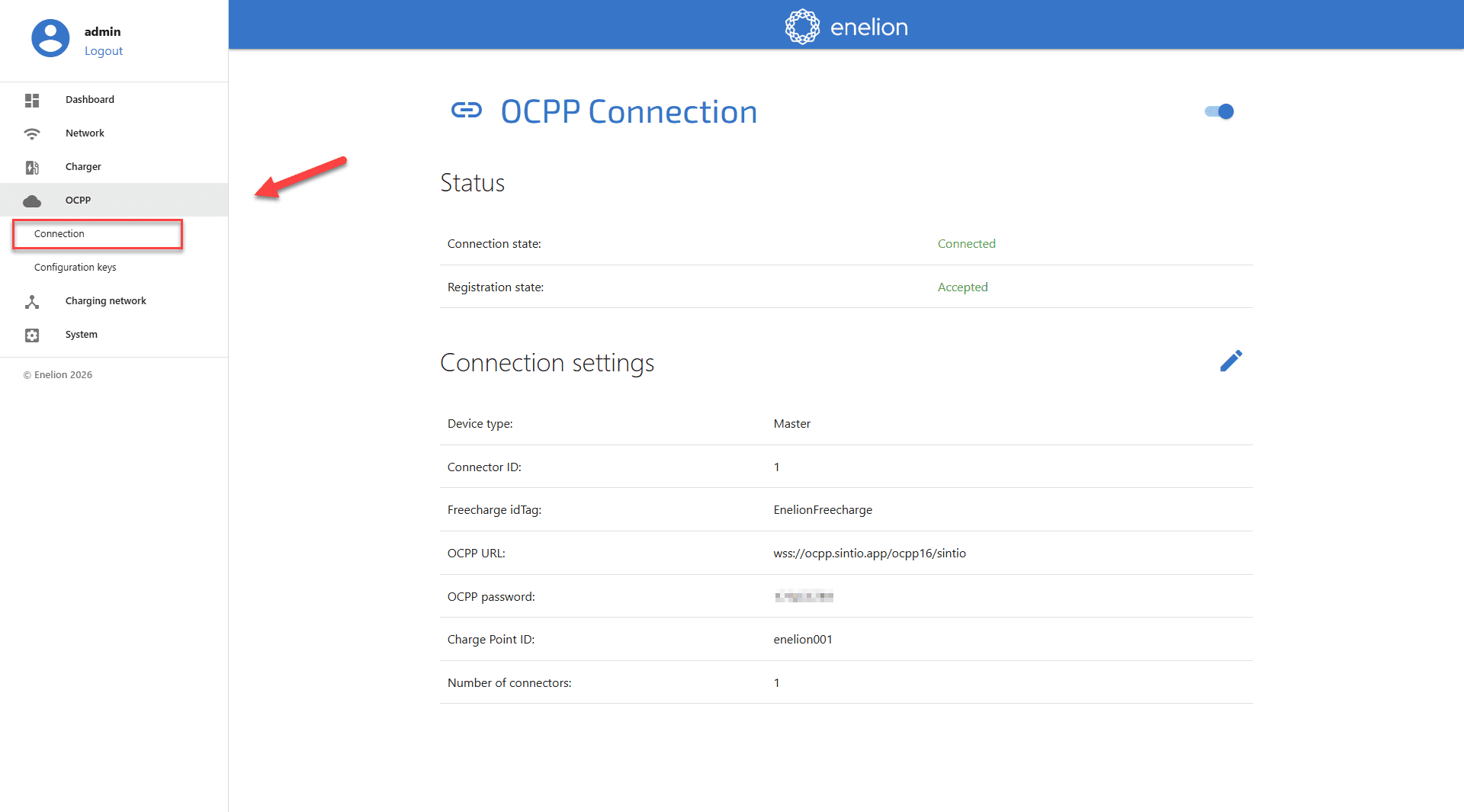
Navigate to OCPP in the sidebar and select Connection. Enter the following values:
| Field | Value |
|---|---|
| OCPP URL | wss://ocpp.sintio.app/ocpp16/YourOrganisation/ |
| OCPP password | Password from the Sintio Portal |
| Charge Point ID | Unique identifier for the charger (displayed as the name in the Sintio Portal) |
The OCPP URL and the password for your organisation can be found in the Sintio Portal under OCPP Details. Here you can find more details about your OCPP credentials.
Configuration Keys
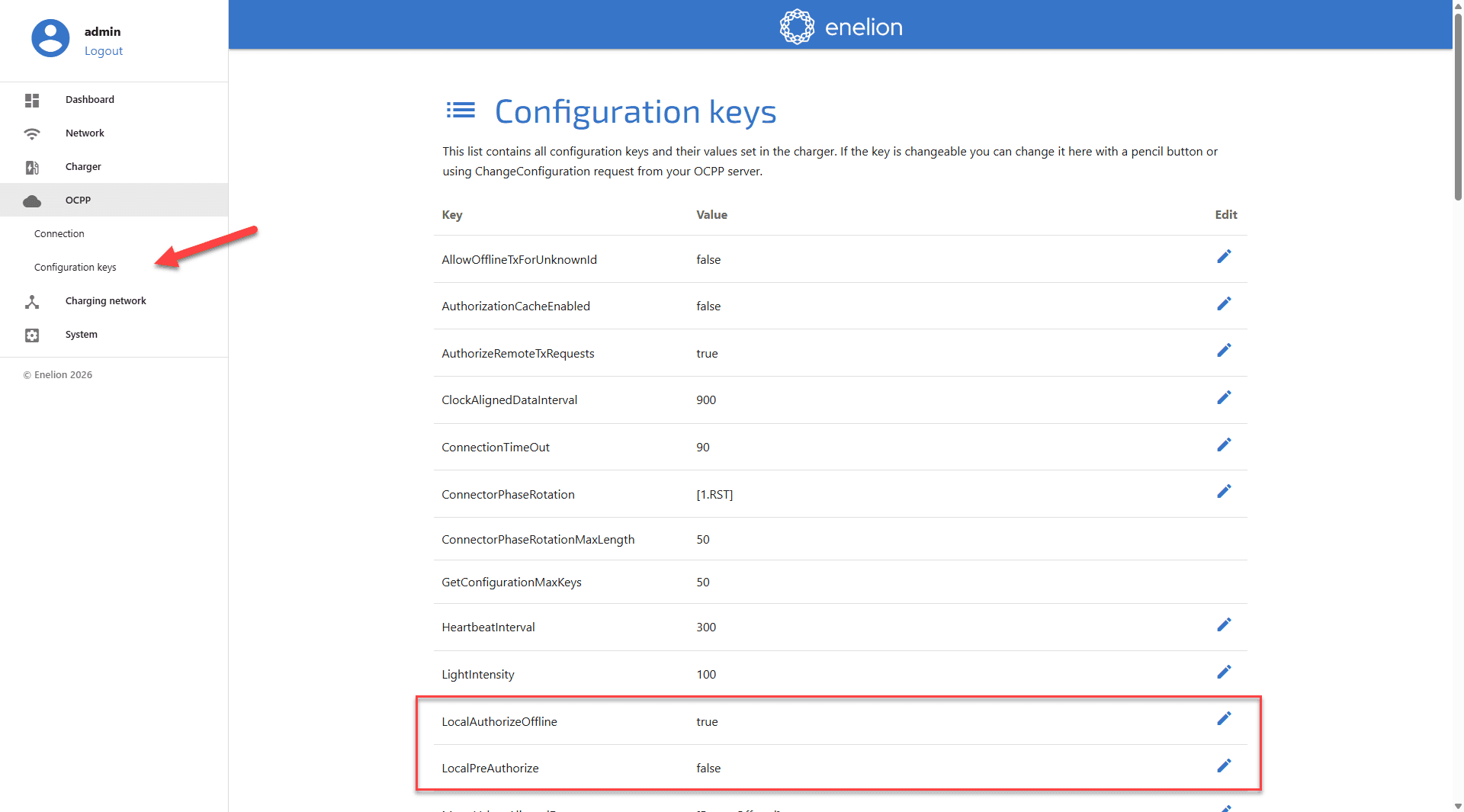
To enable the Sintio Offline Charging (opens in a new tab) feature on the charger, the following configuration keys must be set.
| Configuration Key | Value |
|---|---|
| LocalAuthorizeOffline | true |
| LocalPreAuthorize | false |
After the configuration, the charger will appear in the Sintio Portal within a few minutes.
Instructions for configuring the charger in the Sintio Portal can be found here.