OCPP Integration Elecq Chargers
Elecq Home
Linking an Installation with the Sintio Portal
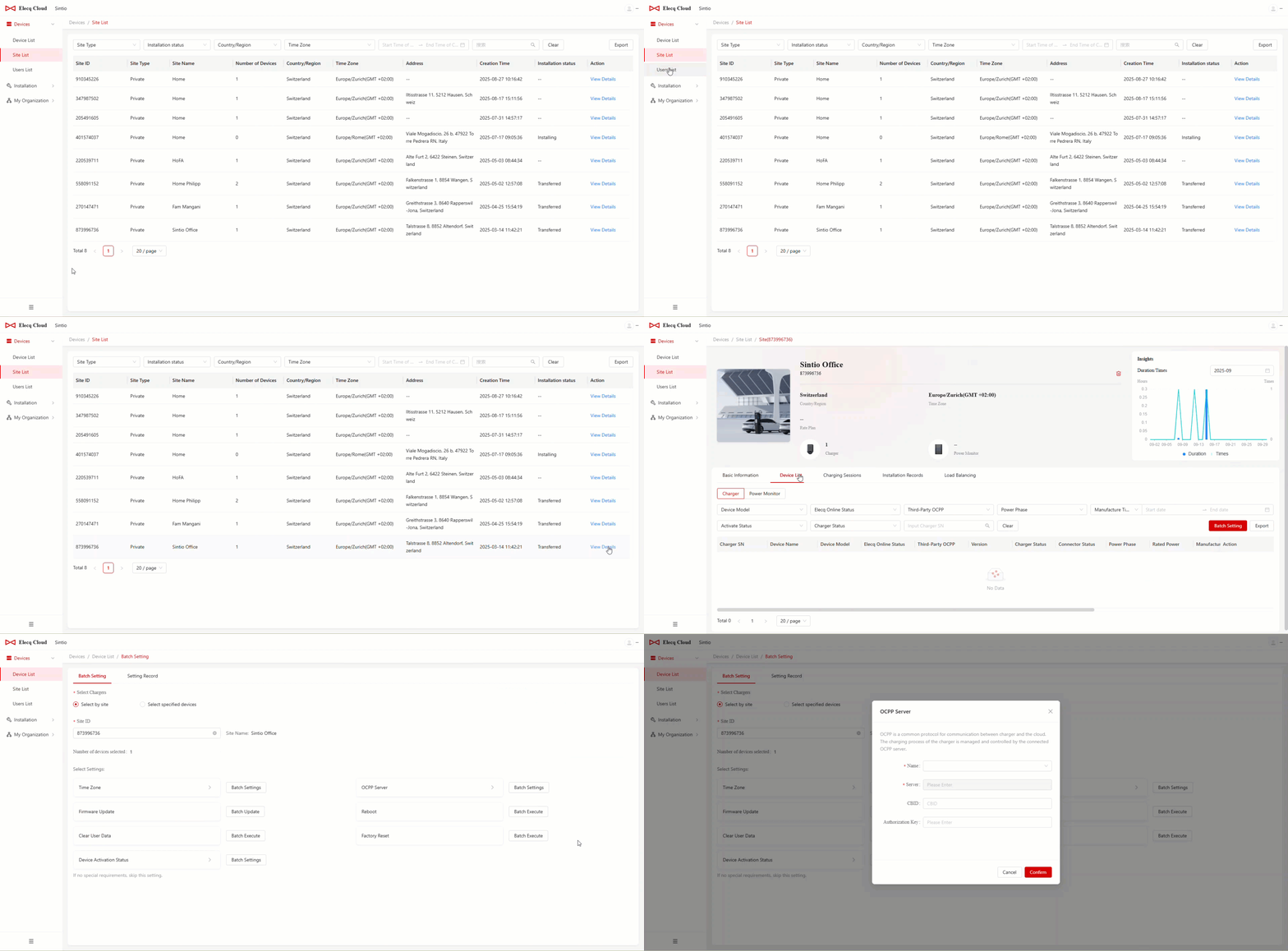
To link all chargers of an installation, click Device List in the main navigation and then select the according installation (Site).
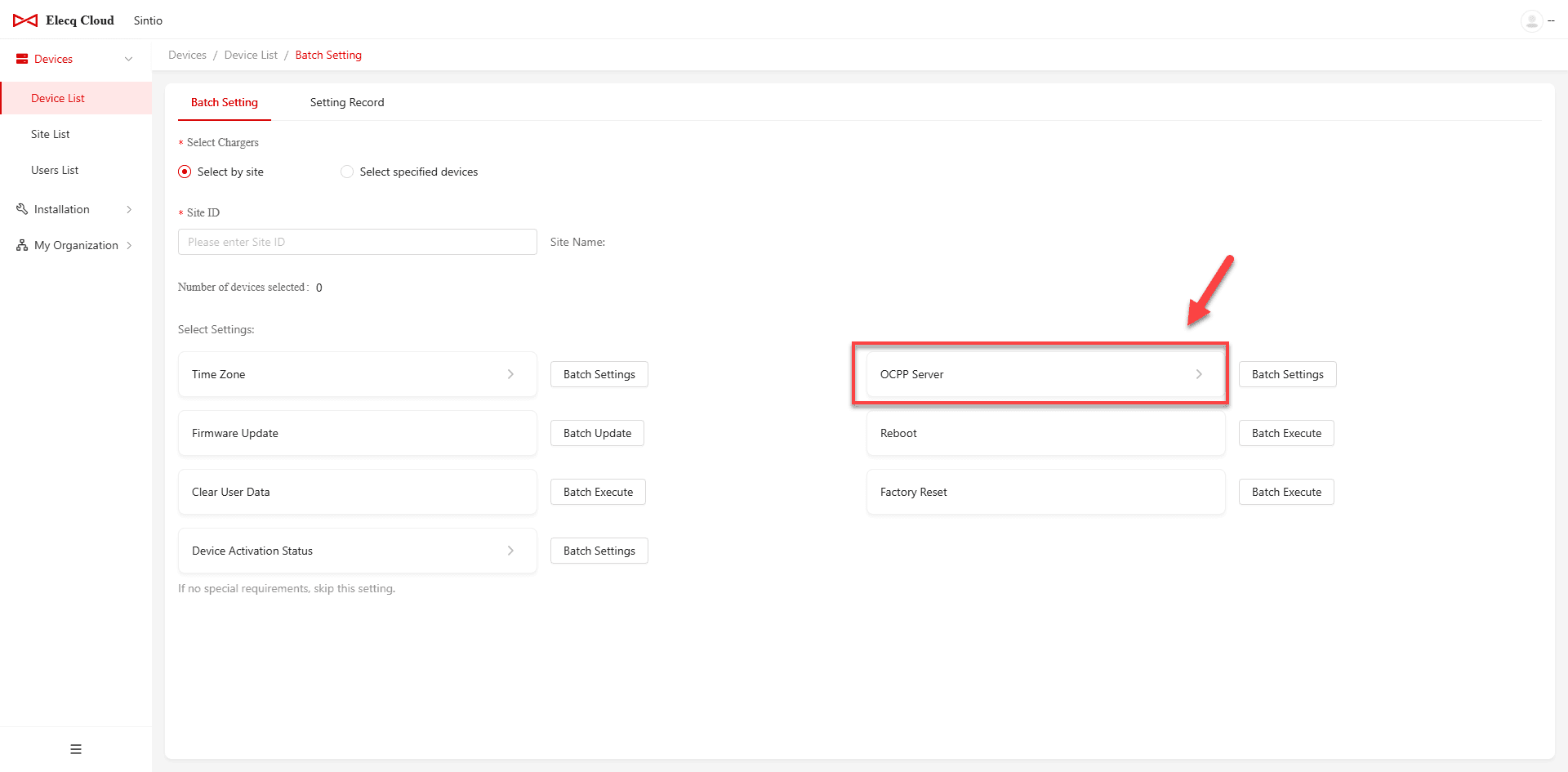
Select OCPP Server to connect all chargers of the infrastructure (site) with the OCPP server.
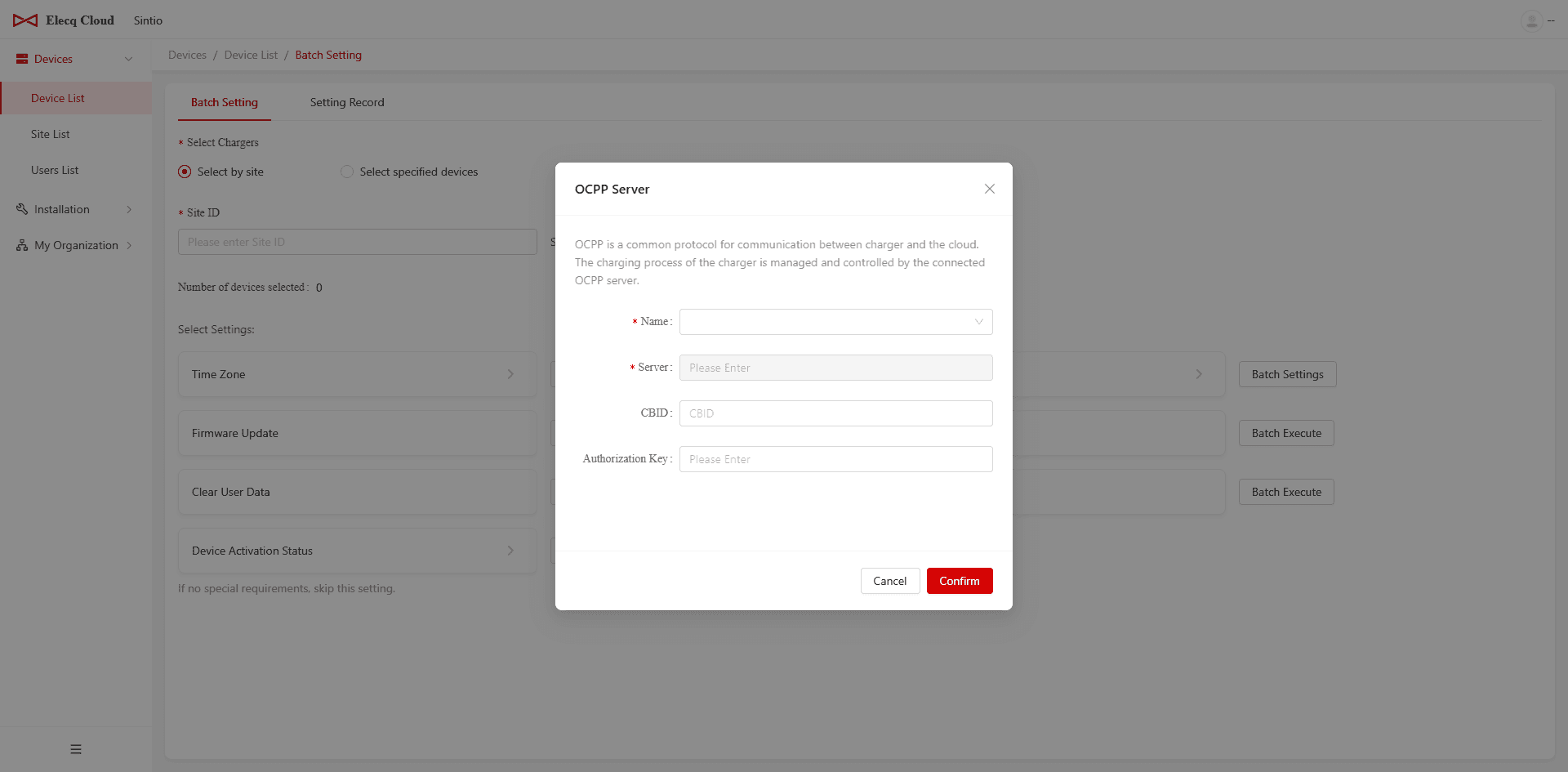
A window will open where you can enter your OCPP details. Fill in the fields with the following information:
| Setting | Input |
|---|---|
| Name | Select Custom from the dropdown |
| Server | wss://ocpp.sintio.app/ocpp16/YourOrganizationName |
| CBID | (Leave this field empty.) |
| Password | OCPP password from the Sintio Portal |
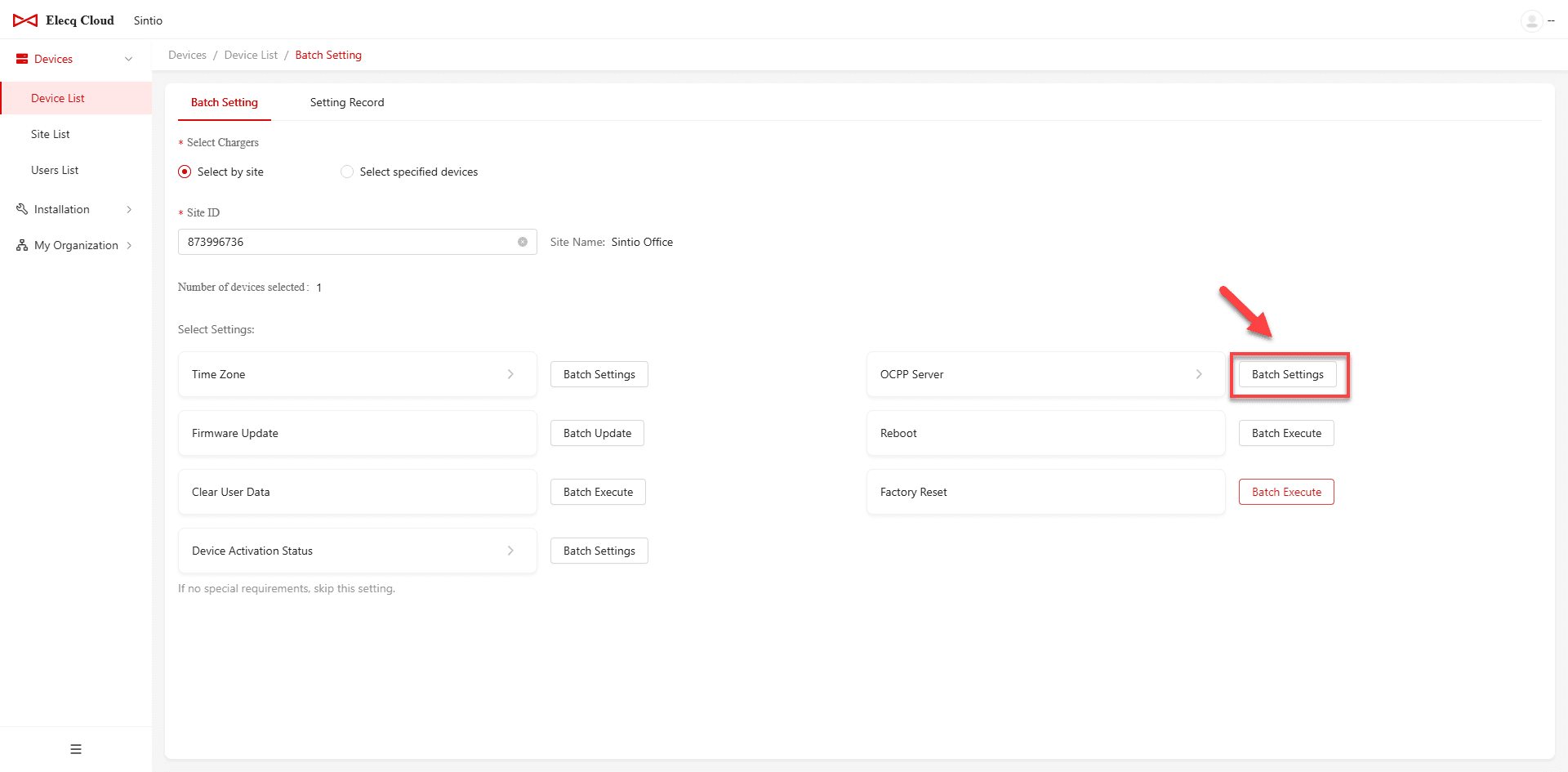
Click on Batch Settings and confirm the OCPP settings once you have entered all the information correctly.
The chargers will register with the Sintio Portal and you can complete the integration of the chargers. Instructions for configuring chargers on the Sintio Portal can be found here.
Linking a Single Charger
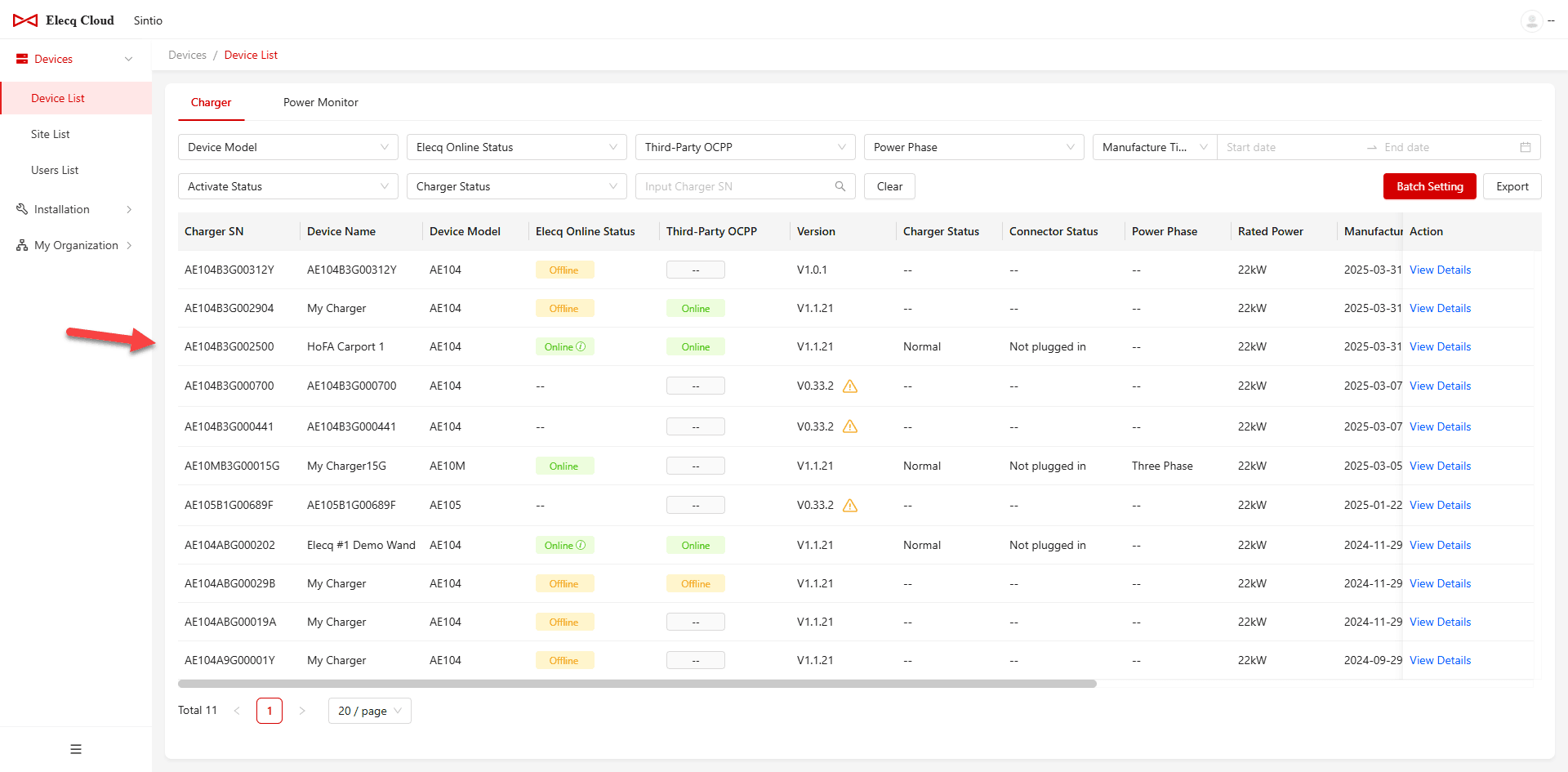
To link a single charger, click Device List in the main navigation and select the desired charger.
Under Settings, choose OCPP Server to connect the charger with the Sintio OCPP server.
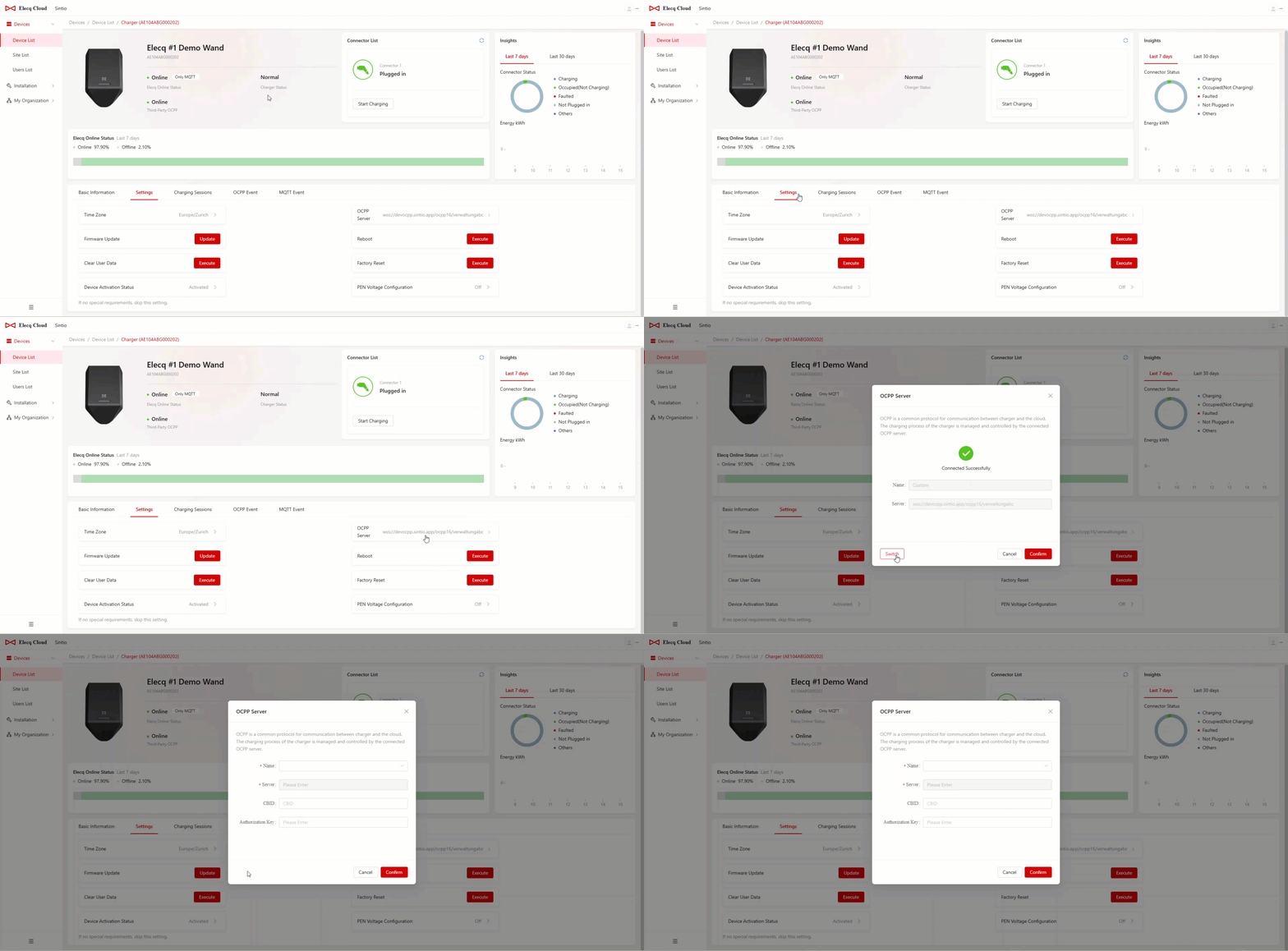
A window will open where you can enter your OCPP details. Click Switch and fill in the fields with the following information:
| Setting | Input |
|---|---|
| Name | Select Custom from the dropdown |
| Server | wss://ocpp.sintio.app/ocpp16/YourOrganizationName |
| CBID | (Leave this field empty.) |
| Password | OCPP password from the Sintio Portal |
The chargers will register with the Sintio Portal and you can complete the integration. Instructions for configuring the charger on the Sintio Portal can be found here.